
Wondering what Threads is, how it relates to Instagram, and what to post after you create an account? This guide covers the decisions that matter before sign-up, a practical first-post formula, and the checks that tell you whether a post is actually live.
30-second answer: Threads is Meta's public-conversation app, created by the Instagram team. Before you create or add a profile, decide who the account represents, what it will discuss, and who should be able to see and reply to it. After your first post, open the public profile and confirm the text, media, links, and visibility instead of treating a completed composer screen as proof that publishing is finished.
What is Threads?
Threads is a social platform for sharing short ideas, links, photos, and videos and continuing the conversation through replies. Meta introduced it as an app from the Instagram team for text updates and public conversations. You can use the mobile app or visit Threads on the web to read feeds and publish posts.
The word thread can also mean a connected series of posts. In this guide, Threads with a capital T means Meta's service, while a thread means one post or a connected conversation.
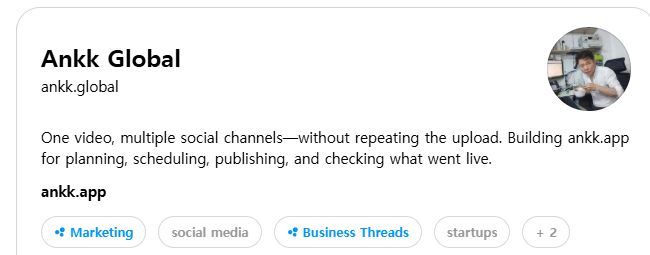
The public Ankk Global Threads profile, checked on September 3, 2026. A clear name, username, bio, and link tell visitors who runs the account and what they can expect from it.
Is Threads the same as Instagram?
No. Threads has its own feed, posts, and conversations. But it did not launch as a completely separate account system. At launch, people signed in with an Instagram account, and their Instagram username and verification could carry over to Threads.
Account screens are changing, so old tutorials may no longer match what you see. In 2026, Meta began gradually updating Accounts Center to Meta Account, a broader sign-in and settings system that includes Threads. Because the rollout is gradual, people may see different sign-in or profile-management options at the same time.
Use the current Threads app or website as the source of truth. Before continuing, check the profile name and account connection shown on your own screen rather than assuming an older button-by-button guide still applies.
Decide these three things before creating a Threads account
Creating a profile may take only a few minutes. Fixing an unclear business account later takes longer. Write down these three decisions first.
1. Who is speaking?
- A personal account sharing one person's experience and opinions
- A brand account discussing a product and customer problems
- A work account operated on behalf of a client
One person can be the voice of a brand. The important part is that a new visitor can understand who is speaking and why in one sentence.
2. What will the account discuss repeatedly?
Start with three recurring topics instead of every subject you care about. A solo creator who makes shopping videos could use:
- How each short-form video is planned and produced
- What becomes difficult when publishing across several social channels
- What happened after publishing and what will change in the next test
Recurring topics make the second and third posts easier to write. They also give visitors a reason to follow beyond one introduction.
3. What must be checked before the profile is public?
Review the display name, profile image, bio, link, visibility, and login-recovery method. If the profile belongs to a client, record who owns the account, who can sign in, and who is responsible for recovery and content approval.
Adding a profile is not the same as separating personal and work accounts
People searching for how to add a Threads account may be trying to do three different things.
| What you want to do | Check first |
|---|---|
| Start Threads with an existing identity | The Instagram or Meta account currently shown and the Threads profile name that will be created |
| Add another personal or brand profile | The profile offered by the switcher, its public name, and its recovery method |
| Keep personal and client work separate | Ownership, login access, two-factor authentication, and content-approval responsibility |
Open the profile switcher in the current app and look for the option that adds or switches profiles. Labels can vary by account state and app version. Then check the following:
- Confirm which identity is currently signed in.
- Confirm the name and connected account for the profile you are adding.
- Set the profile image, bio, and link for its purpose.
- Review visibility, reply, and mention settings.
- Check the profile name again before publishing the first post.
The ability to switch profiles does not automatically separate personal and business operations. A client account should not depend on one person's phone for all login and recovery access.
What should your first Threads post say?
“I'm on Threads now” introduces the account but gives readers little reason to return. A stronger first post answers three questions:
- Who are you? State the work or experience you bring.
- What will you share? Name the topics you will return to.
- Who do you want to hear from? Ask one specific group or question.
For example:
I run a solo business and publish shopping videos across Threads, Instagram, and YouTube. Here I'll share the real workflow after a video is finished: adapting it for each channel, publishing it, and checking what actually went live. If you do this alone too, which step do you repeat most often?
This does not promise growth or impressive results. It gives the account a clear subject and invites a useful reply.
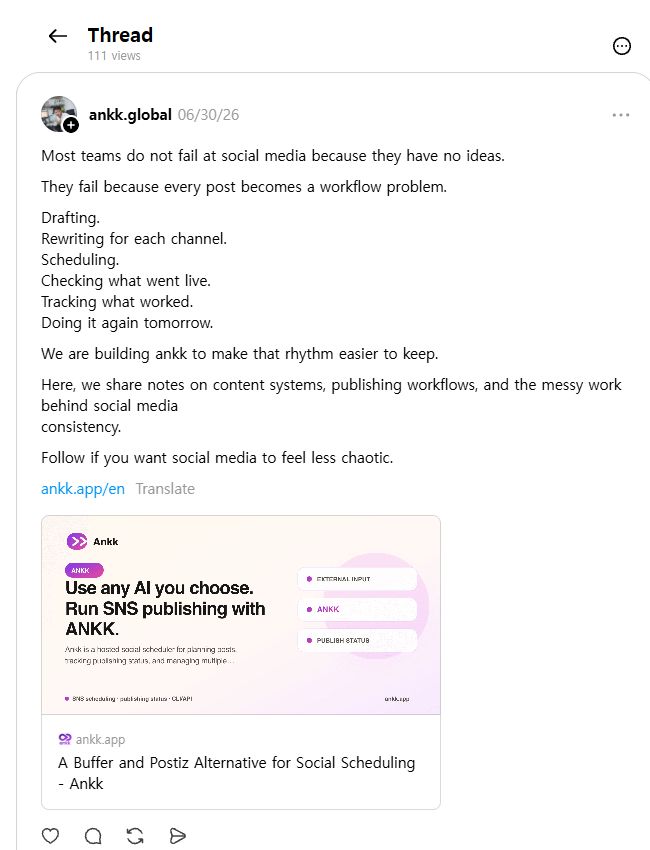
A public post from Ankk Global, checked on September 3, 2026. The opening identifies the problem, the body explains the account's focus, and the link gives interested readers a next step.
Threads checklist: before and after you post
Before publishing
- Is the correct profile selected?
- Does the topic make sense from the first sentence?
- Does every link open the intended destination?
- Do you have the right to publish the photos or video?
- If you want replies, is there one clear question?
After publishing
- Can you see the post on the public profile?
- Do the line breaks, links, and media appear as intended?
- Is the visibility correct when viewed from another account or while logged out?
- Have you saved the original post URL?
- When will you check and respond to replies?
Do not assume publishing is complete just because the composer closed. If you use a scheduler or another integration, distinguish between a request being accepted, content being processed, and a post being publicly available.
Four posts are enough for your first week
You do not need to publish several times a day from the start. Begin with four posts that test whether the account's topic and operating rhythm make sense.
| Order | Purpose | Example |
|---|---|---|
| 1 | Account introduction | Who you are and what you will document |
| 2 | Immediately useful information | A checklist, mistake to avoid, or short method |
| 3 | First-hand experience | What you tried and what you could verify |
| 4 | Conversation prompt | Ask how people with the same problem handle it |
If the first posts receive little engagement, do not change the entire topic immediately. Record views, likes, replies, quotes, and profile visits, then change one element in the next four posts. That produces a more useful comparison than changing the audience, format, and message at the same time.
Should you copy the same Threads post to every social network?
You can reuse the same core idea, but the exact copy does not need to be identical. People discover and consume content differently on each channel.
| Channel | What to adapt | What to check after publishing |
|---|---|---|
| Threads | Lead with an opinion, observation, or question | Replies, quotes, and the original post |
| Add context that supports the image, carousel, or Reel | Media order, caption, and link path | |
| YouTube | Separate the searchable title from the video description | Public visibility, processing, and the original URL |
| TikTok | Focus on the opening visual and concise supporting text | Visibility, video processing, and the original URL |
Take a topic such as “a pre-publish checklist for shopping videos.” On Threads, ask which step people miss most. On Instagram, turn the list into a saveable carousel. On YouTube and TikTok, show the check in a short video.
The goal is not to create a completely new idea every time. Keep the message, adapt the presentation, and confirm how far publishing actually progressed on each channel.
When is the official Threads app enough?
If you post on Threads occasionally and do not manage other channels, the official app or website may be all you need. If every finished post or video must also be uploaded to Instagram, YouTube, TikTok, or other networks, account selection, channel-specific copy, timing, and final-status checks become a separate operating job.
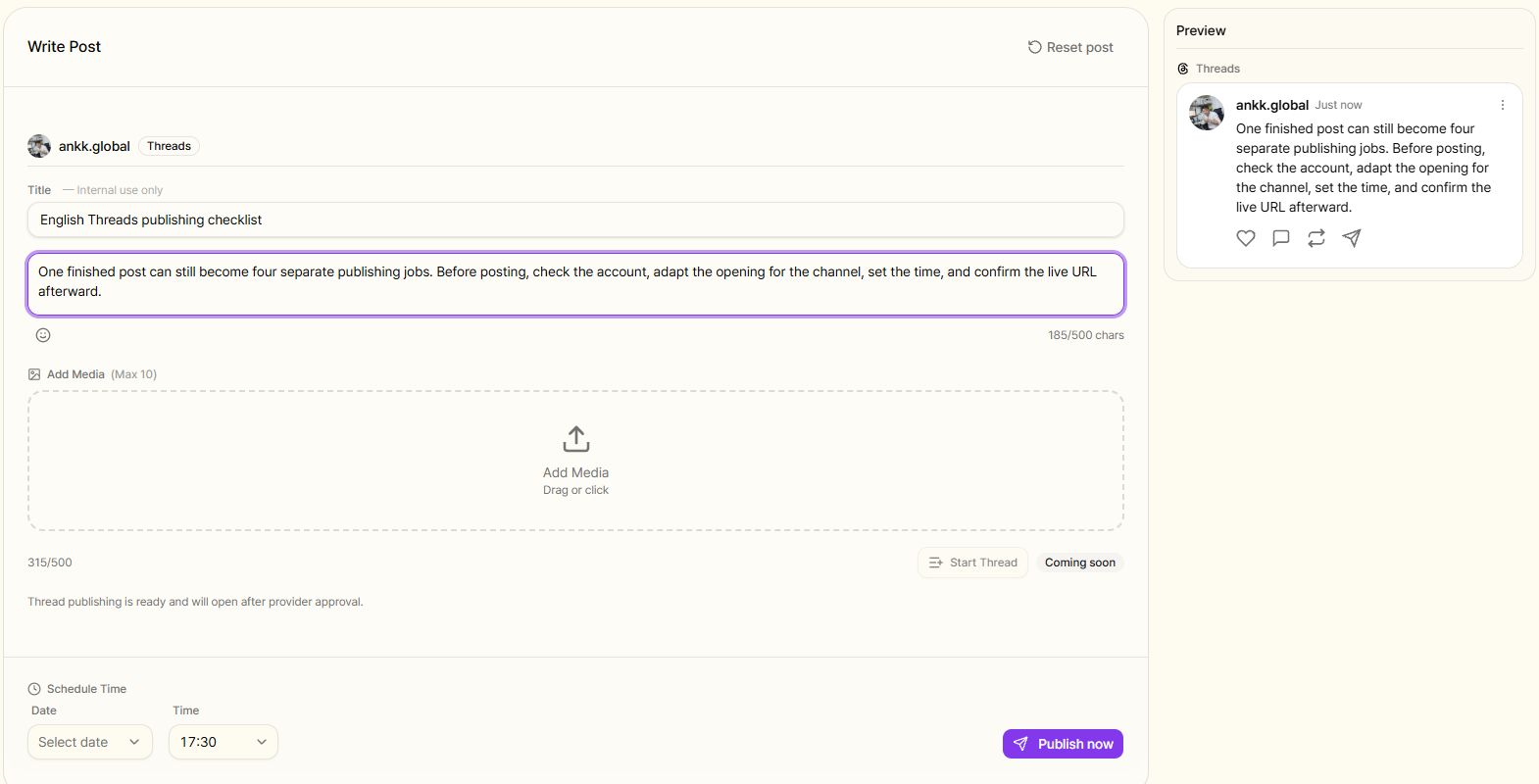
The current Ankk brand workspace in English. This is not a tutorial for the Threads interface itself; it shows how a multi-channel operator can check the selected account, copy, and preview in one workflow.
Treat the following as one publishing cycle:
- Prepare the source content and its core message.
- Adapt the opening, title, links, and media for each channel.
- Confirm the account and publishing time.
- Send the immediate or scheduled publishing request.
- Check the final channel status and open the original post.
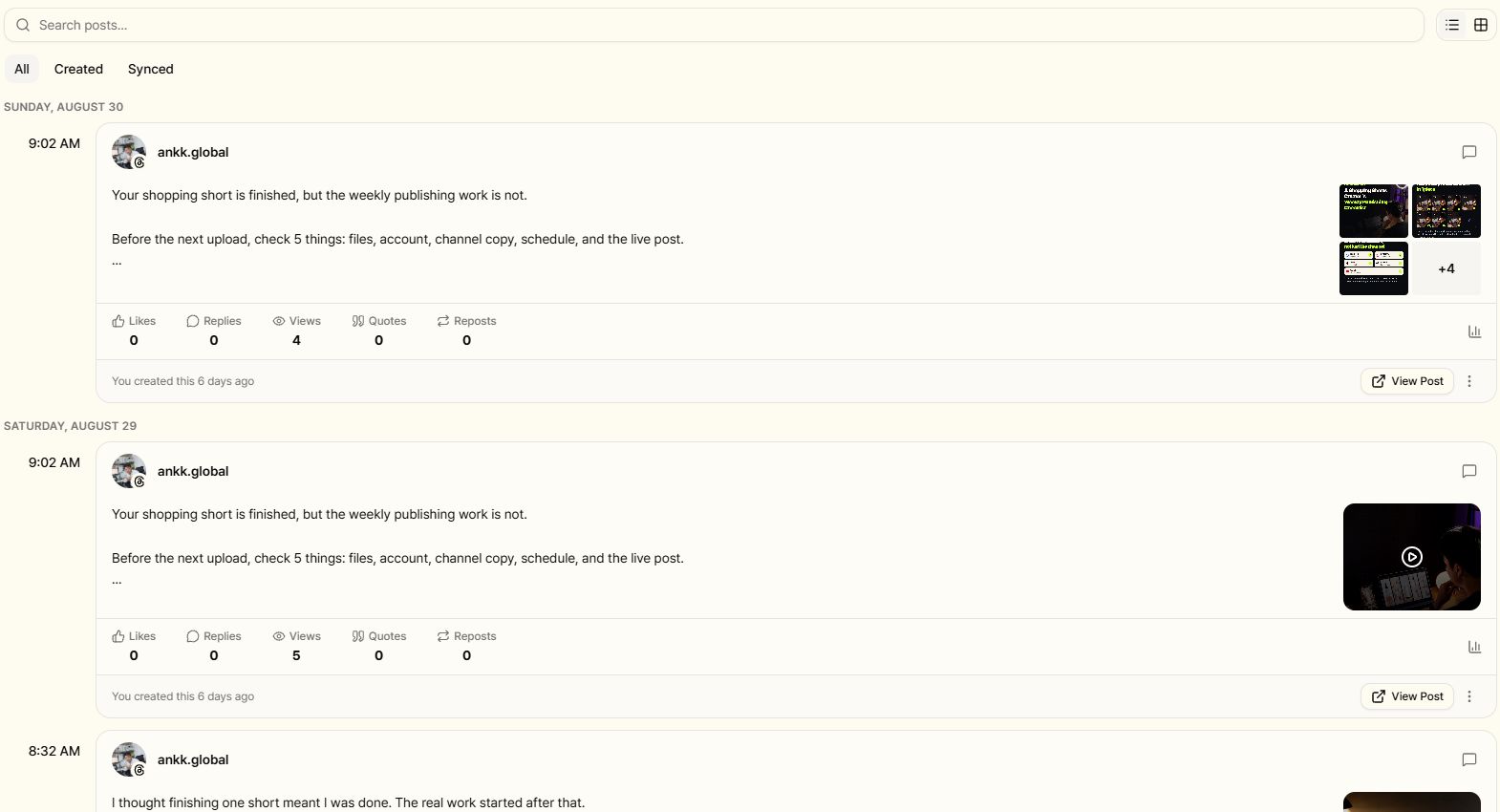
The current Ankk Published view for the public Ankk Global Threads account. The final status and the link to the original social post are checked together.
Ankk is a social media management product for planning, scheduling, and publishing prepared content across multiple social networks without registering it separately in every channel. The current Ankk Threads support page lists text, images, video, and 2–20-item media carousels, with a review of up to 500 characters and no more than five links. It also distinguishes an accepted request from the final published or failed status. The page shows August 14, 2026 as its latest verification date, so check it again before publishing.
Ankk does not create the post or image for you. Prepare the content yourself or with any external tools you choose, then use Ankk to manage channel connections, scheduling, publishing, and result checks.
Frequently asked questions
Do I need an Instagram account to use Threads?
Threads launched with Instagram-based login and profile setup. Current choices can vary by region and account state, and Meta's gradual Meta Account rollout may change what you see. Follow the current sign-in screen and confirm the connected identity instead of relying on an old tutorial.
Can I run a personal and a brand Threads profile together?
You can switch between profiles when the current account setup supports them, but switching alone does not define ownership or access. If customer support, team access, recovery, or content approval differs, document those responsibilities and consider a separate work profile.
How many Threads posts should I publish on the first day?
There is no required number. A repeatable topic and a reliable review routine matter more than a large first-day volume. One introduction is enough if you confirm that it appears correctly and know what you will publish next.
Is a scheduled Threads post already published?
No. A schedule represents a future publishing request. After the scheduled time, check the final status and open the original Threads post before treating it as publicly published.
Can Ankk generate my Threads content?
No. Ankk manages prepared content across social channels. Content creation can happen in your own workflow or in external tools; it is not a built-in Ankk content-generation promise.
Sources and verification scope
This guide was reviewed on September 3, 2026 using the following official sources:
- Meta's introduction to Threads
- Meta's Threads web experience update
- Meta's Meta Account rollout announcement
- Ankk's current Threads support scope
Threads menus, account connections, and supported formats can change. Check the current app and official guidance immediately before creating an account or publishing.
Next step
Connect Threads and prepare your first post
Choose the identity and one recurring topic first. Publish the first post on Threads, then—if you distribute the same idea to other social networks—confirm each channel's final status and original public URL.