Instagram Professional Account: Business vs. Creator and How to Switch
You want to publish product Reels regularly, but Instagram's settings mention personal, professional, Business, and Creator accounts. Which one do you need?
Start with this distinction: an Instagram professional account is either a Business account or a Creator account. These are not four equivalent options. Instagram's account guide
This guide covers how to choose, how to switch, what becomes public, and what to check before connecting a publishing tool.
Checked September 5, 2026. Conversion steps follow Instagram's official help. Desktop screenshots show real accounts operated by ANKK. Menu names and order may vary by app version and account status.
1. Business vs. Creator: choose by the account's purpose
Instagram describes Business accounts as a fit for businesses such as shops, brands, and service providers. Creator accounts are designed for content producers, artists, and influencers. Both are professional account types. Official overview
Use the comparison below as a practical starting point—not a promise that one type will deliver more views or sales.
| Ask yourself | Consider Business first | Consider Creator first |
|---|---|---|
| Who or what does the profile represent? | A store, brand, product, or service | You, your work, or your expertise |
| Why do people visit? | Product information, purchases, or service inquiries | Reviews, explanations, and your perspective |
| What kind of product videos do you make? | Official videos for your own store | Reviews of products from different brands |
| What should the bio make clear? | What you sell or provide | What you create content about |
For example, a home-goods store's official profile could start with Business. An independent reviewer comparing home products could start with Creator. If you do both, describe this account's main job in one sentence.
Follower count alone is not a useful way to make that decision. Focus on who runs the account and why people follow it.
2. Review what will become public before switching
Professional accounts cannot be private. Switching a private personal account makes it public and automatically accepts pending follow requests. Review old posts and your profile first if you previously shared them only with friends or family. Instagram's visibility guidance
Category labels and contact details need a separate check. You can show or hide the category label. If you configure contact options, visitors may be able to see the contact information you provide. Profile display options
Before switching:
- Confirm the username belongs to the account you intend to make public.
- Review existing photos, your bio, and links for information you do not want everyone to see.
- Use business contact details you are comfortable making public.
- Make sure the category and bio describe the account's actual role.
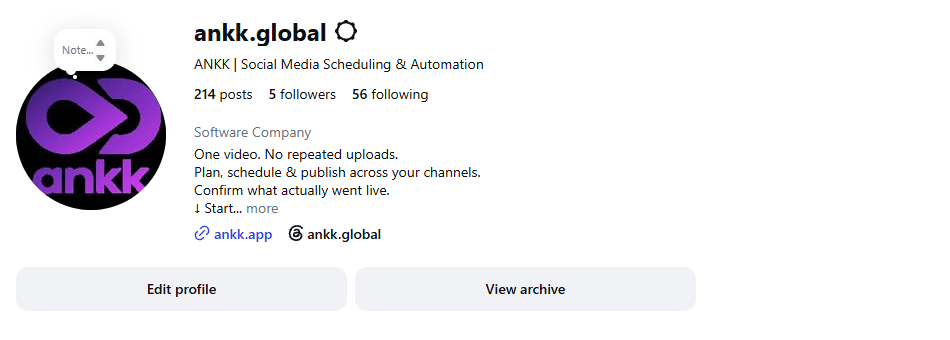
A real example: @ankk.global displays a category, product description, and website link. A category label alone does not establish the account type; check settings too.
3. How to switch to an Instagram professional account
From a personal account in the mobile app
The basic sequence in Instagram's official help is:
- Open the profile of the account you want to switch.
- Open the top-right menu to access Settings and activity.
- Under For professionals, open Account type and tools.
- Choose Switch to professional account.
- Select a category that fits your activity and continue through the prompts.
- Choose Business or Creator, then continue.
- Review contact details and profile display options before finishing.
Your category does not determine whether the account is Business or Creator. You can choose either type regardless of category. Connecting a Facebook Page is optional in Instagram's basic conversion flow. Official setup instructions
From a personal account on desktop
On Instagram's website, go to More → Settings → For professionals → Account type and tools → Switch to professional account. Choose the type and category, complete the prompts, and review any contact information you will display. Desktop setup instructions
If the account is already professional
You may see Business or Creator tools instead of the first-time conversion option. On September 5, 2026, ANKK's English Business account showed Settings → Business tools and controls, with options to switch to Creator or personal.
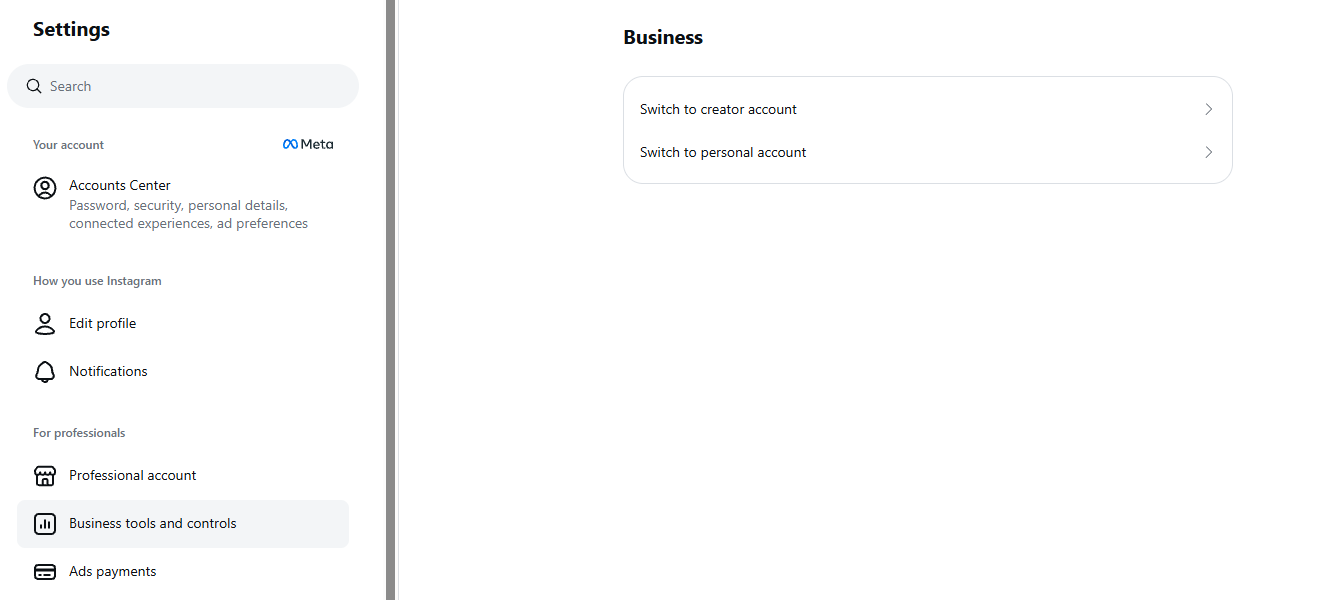
This is an existing Business account, not the first-time setup screen for a personal account. We did not change its type to capture this example.
4. Missing music? Check usage rights before changing account type
It is tempting to switch to Creator when a song is unavailable. But finding a track in the app and having permission to use it commercially are different questions.
Meta describes its licensed music library as intended for personal, non-commercial use. Access may be restricted for some Business accounts, post types, and countries or regions. It also points to Meta Sound Collection as an alternative for commercial use. Instagram's music guidance
For product promotions or brand collaborations, check the track's terms instead of treating an account switch as a licensing workaround. Availability on Instagram does not establish permission to reuse the same audio on YouTube or TikTok.
If you distribute a video across several platforms, keep the audio source, commercial-use terms, and permitted platforms in your internal production notes.
5. Check the connection and the first live post separately
Switching account type is one preparation step. Connecting the right account to a scheduling tool, granting the required permissions, and confirming publication are separate checks.
ANKK supports planning, scheduling, and publishing for Instagram Business and Creator accounts. If you operate several social channels, you can manage channel-specific copy and timing in one place, then review publishing results. ANKK's Instagram support
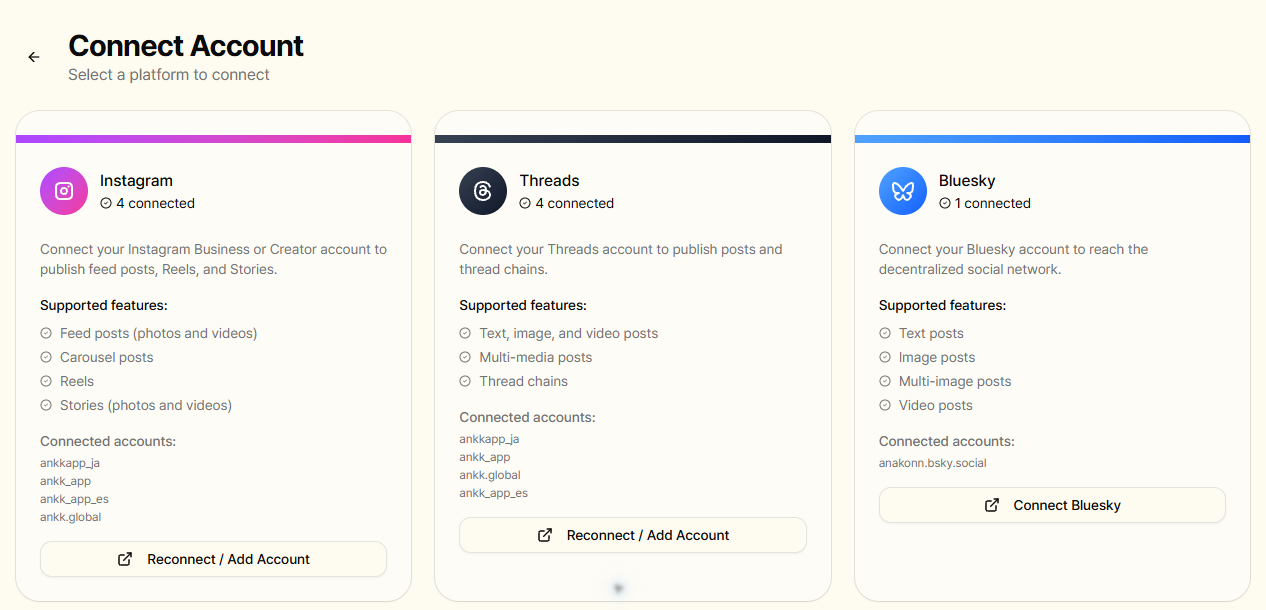
The real ANKK brand workspace. The connected-account list identifies registered accounts; it does not prove that an individual post has gone live.
Before your first post:
- In ANKK, open Connect Channel → Connect Account and find Instagram.
- Check that the username in the connection flow is the account you intend to use.
- After connecting, review the account list and any permission guidance.
- Prepare content you are ready to publish, then check the destination account, caption, and timing.
- After publishing, check the final status and open the original Instagram post.
On the live post, confirm the account, video or images, and caption. A successful connection or saved schedule is not a substitute for that final check.
Preparing a Reel? Continue with the Instagram Reels size, length, and upload checklist.
Frequently asked questions
Does switching also subscribe me to Meta Verified?
Changing account type and subscribing to Meta Verified are separate processes. Meta Verified is described as a paid subscription offering benefits such as verification and support. Do not confuse a subscription offer with the account-type setting. Meta Verified overview
Do I need a Facebook Page?
A Page is optional in Instagram's basic account conversion process. Third-party services may have different requirements depending on their authentication method. Meta's Instagram Login method does not require a linked Page. Follow the actual connection instructions for the service you use. Instagram setup guide · Meta's official API guide
Can I switch back to a personal account?
Yes, but access to some Meta business tools changes. The current help also says public personal accounts can retain access to the dashboard and insights. Avoid assuming every insight disappears after switching back. Review the data you need and your connected services before making the change. Switching back to personal
Will a Creator account get more views?
The official sources reviewed for this guide do not establish a reach advantage for one account type. Choose the type that fits your role, then compare content topics, audience response, and publishing results over time.
Choose the right type, then check the live result
Consider Business for a store or brand and Creator for a creator-led profile. Before switching, review public visibility and contact details. After switching, check the connected account and the actual published post.
If you manage the same content across Instagram and other social channels, connect your channels and prepare your first post with ANKK.