Are you checking Instagram Reel dimensions, length, and video quality again just before you publish? This guide brings the practical checks into one place: the official format range, a reliable working size, cover placement, music rights, upload problems, and the final check that proves the Reel is actually public.
30-second answer: For a full-screen vertical Reel, 1080×1920 px at 9:16 is the most practical working format. Instagram currently accepts aspect ratios from 1.91:1 to 9:16, with at least 720 px and 30 fps. Its Help Center currently describes Reel recording and editing up to 20 minutes, but notes that Reels longer than 3 minutes may not be recommended to new audiences. Check the current upload screen before using a long file.
Instagram Reels size, dimensions, and length at a glance
| Item | Practical working choice | Instagram guidance | Check before publishing |
|---|---|---|---|
| Aspect ratio | 9:16 vertical | 1.91:1 to 9:16 | No unwanted crop, zoom, or side bars |
| Canvas size | 1080×1920 px | At least 720 px | The source file is sharp before upload |
| Frame rate | Keep capture, edit, and export settings consistent | At least 30 fps | Conversion did not reduce smoothness |
| Length | Consider 3 minutes or less when discovery is the goal | Up to 20 minutes in the current Help Center; Reels over 3 minutes may not be recommended to new audiences | The account's current upload screen accepts the file |
| Cover | Keep the subject and title near the center | Recommended cover: 420×654 px, 1:1.55 | It works in both the Reel view and profile grid |
1080×1920 px is a practical production standard, not the only size Instagram accepts. Passing the minimum technical requirement also does not guarantee that text, faces, or products will remain clear once Instagram's interface is placed over the video.
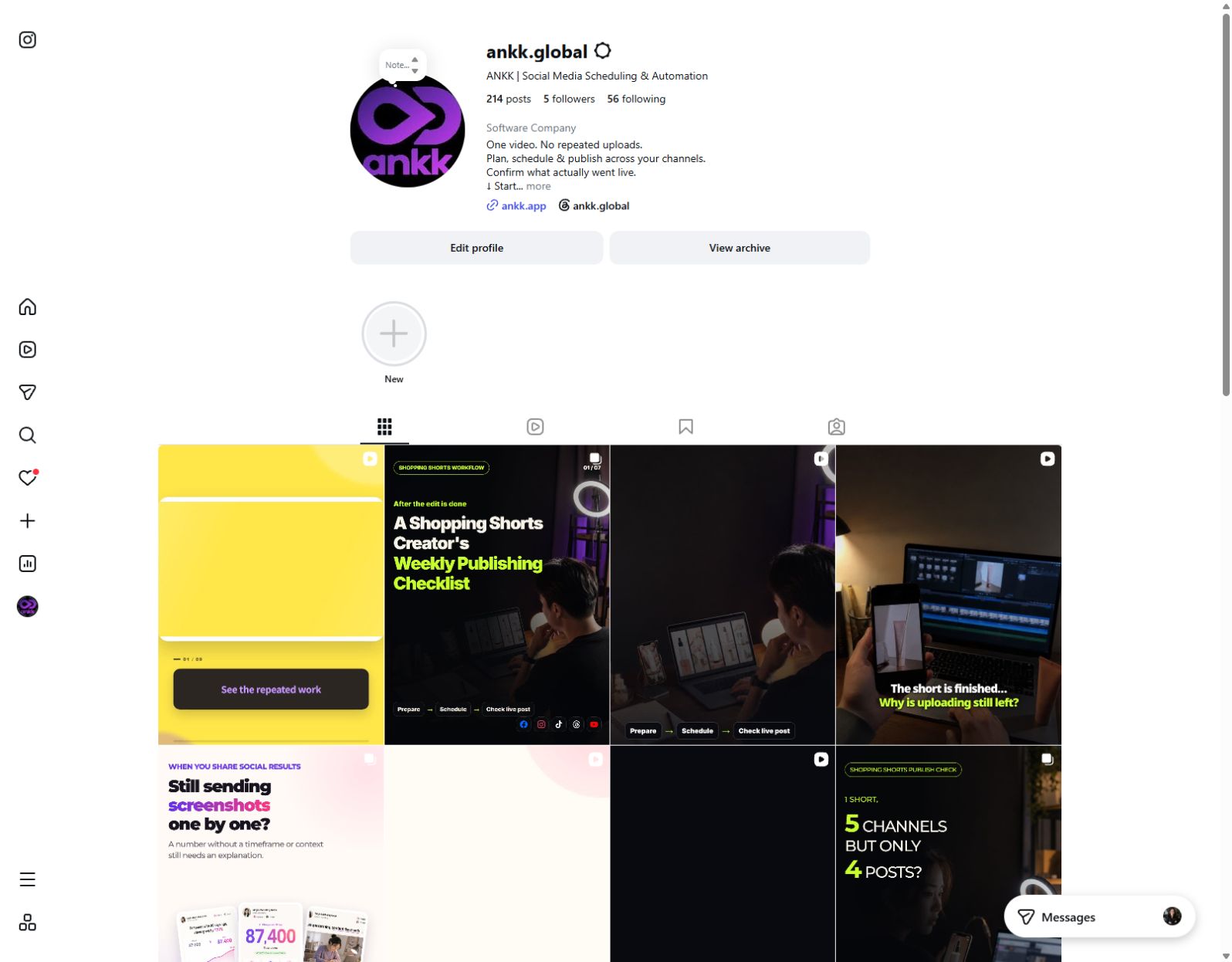
The live @ankk.global Instagram profile, checked on September 5, 2026. This is a current public account, not a reconstructed example.
Five checks before exporting your Reel
1. Play the entire video on a 9:16 canvas
Forcing a landscape clip into a vertical frame usually creates one of two problems: important content is cropped when the clip is enlarged, or large empty areas appear when it is reduced. Set the project and final export to 9:16, then play the file from beginning to end.
- Does the subject stay away from the extreme edges?
- Are captions too close to the bottom?
- Could reaction buttons cover a product or a key sentence on the right?
- Did the first or final shot keep its original landscape ratio?
Do not rely on one universal safe-area diagram. Interface elements change by surface and device. Use the current Instagram preview to check whether the account name, caption, audio label, and action buttons overlap anything important.
2. Protect quality from the source file onward
Upscaling a small or heavily compressed video at the last step cannot restore detail. When possible, capture, edit, and export at 1080×1920 px. Avoid sending the final file through multiple messaging apps or downloading and re-exporting it repeatedly.
If the Reel looks soft, check in this order:
- Is the original footage sharp?
- Is the exported file sharp when played full screen on the device?
- Did export reduce resolution or frame rate?
- Is the highest-quality upload option available and enabled in Instagram?
- Does the result change on a stable network after Instagram finishes processing?
3. Separate maximum length from the purpose of the Reel
The longest file you can upload is not automatically the best length for discovery. Instagram's current Help Center describes recording and editing Reels up to 20 minutes, while also warning that Reels longer than 3 minutes may not be recommended to new audiences.
A longer tutorial or product demonstration can still be useful when the context is necessary. If reaching people who do not follow the account is the main goal, first ask whether the core message can be delivered within 3 minutes. Availability can differ by account and app version, so the current upload screen is the final check for a long file.
4. Check the cover in two different crops
A Reel cover can appear in the full Reel view and in a differently cropped profile grid. Keep the main subject and title away from the edges. If the upload screen offers a cover-position preview, inspect both views before publishing.
5. Confirm music rights for the account and purpose
Instagram's licensed music library is primarily intended for personal, non-commercial use. Access may also be restricted for some business accounts or post types. For sales, advertising, or branded content, confirm that the track can be used commercially. Meta also points businesses to its Sound Collection as an alternative.
How to upload an Instagram Reel: the final sequence
Once the video is ready, check these items in order:
- Account: Is this the correct personal, brand, or client account?
- Format: Is Reel selected instead of a regular feed post?
- Media: Is this the final export, and does the 9:16 preview look right?
- Cover: Is the subject visible in both the Reel view and profile grid?
- Caption: Are the opening line, line breaks, mentions, and hashtags correct?
- Visibility: Are audience, comments, sharing, and collaboration settings intentional?
- Schedule: If it is not publishing now, are the date, time, and timezone correct?
- Live check: Does it play from the public profile, and can you open the original URL?
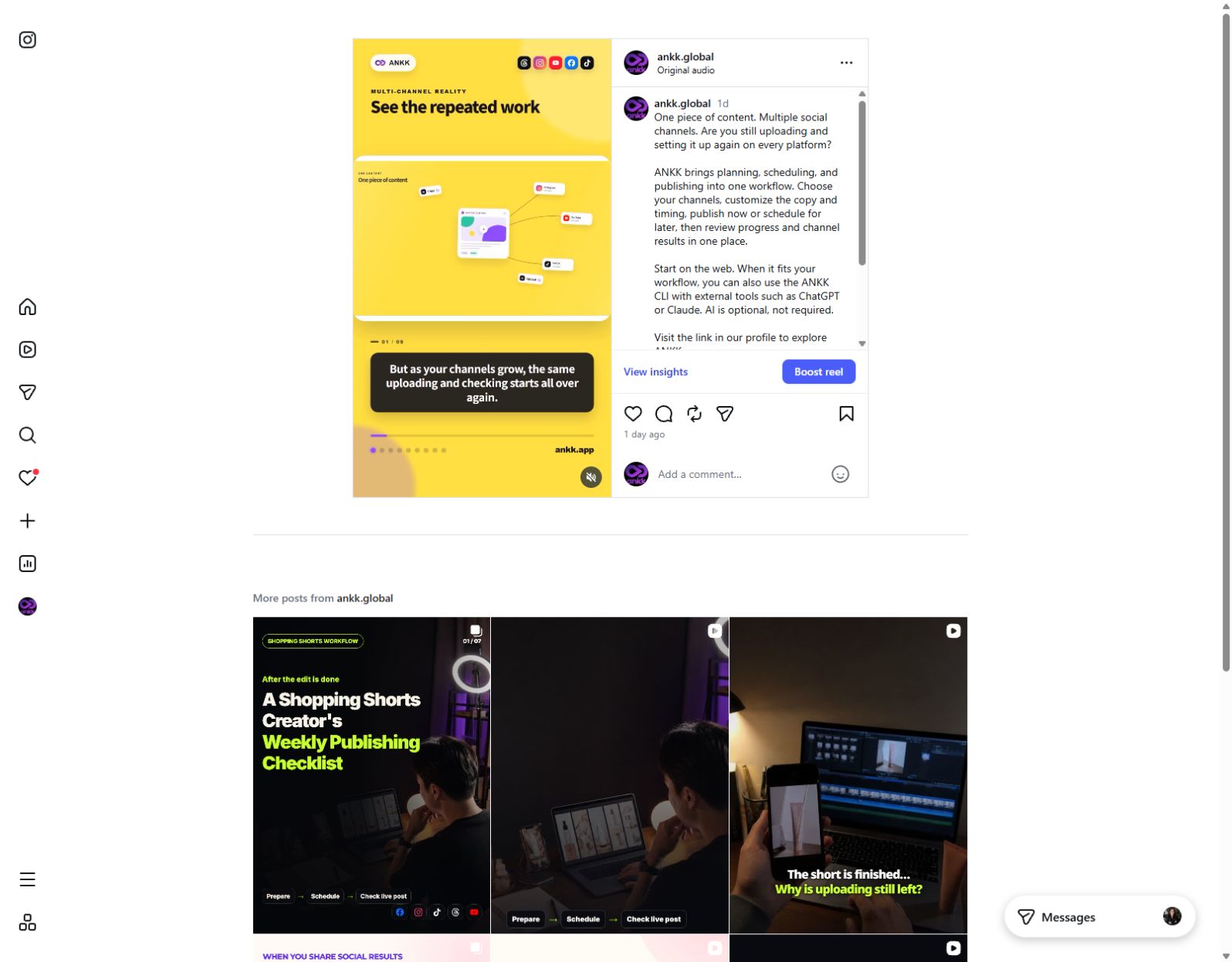
A live Reel from @ankk.global, checked on September 5, 2026. A closed editor is not proof of publication; the public Reel, caption, and original URL are the evidence.
What to check when an Instagram Reel will not upload
Change one variable at a time. If you replace the file, network, app version, and account at once, you will not know what caused the problem.
The upload does not start or stops midway
- Test whether the same account can select a short, known-good video.
- Check the final file's aspect ratio, resolution, frame rate, and length.
- Update Instagram and retry on a stable connection.
- Check device storage and photo/video permissions.
- If other videos work but this file does not, export that file again once.
The Reel looks blurry after upload
Instagram may show a lower-quality version while processing. Check again after processing finishes. If it remains blurry, review the source, export, highest-quality upload setting, and network in that order. Repeatedly downloading a posted Reel, editing it, and re-uploading it can make compression artifacts worse.
Captions or products are cropped
First confirm that the video itself is 9:16. Then decide whether the problem is only the cover crop or whether the video frame needs to be rearranged. Move critical text and products closer to the center and inspect the current Instagram preview again.
The request finished, but the Reel is missing from the profile
Scheduled, processing, and published are different states. Check:
- Was the correct Instagram account selected?
- Has the scheduled time passed?
- Does the final state say published or failed?
- Is there an original Instagram post URL?
- Is the intended visibility correct when viewed from another account or while logged out?
What changes when the same vertical video goes to several social networks
A 9:16 master can be reused for Instagram Reels, TikTok, YouTube Shorts, and other vertical-video surfaces. That does not mean every channel accepts the same settings and copy without review.
| Reuse | Recheck for each channel |
|---|---|
| 9:16 master video and core message | Length limits, processing, and music rights |
| Product shots and explanation order | Opening line, title, hashtags, and link path |
| Caption design in the source video | Interface areas that may cover text |
| Campaign's reference time | Account, visibility, schedule, and final public result |
The repeated work usually appears around the file: selecting accounts, adapting copy, choosing times, and checking what went live. Treat file preparation → channel settings → schedule or publish → final status → original URL as one publishing operation.
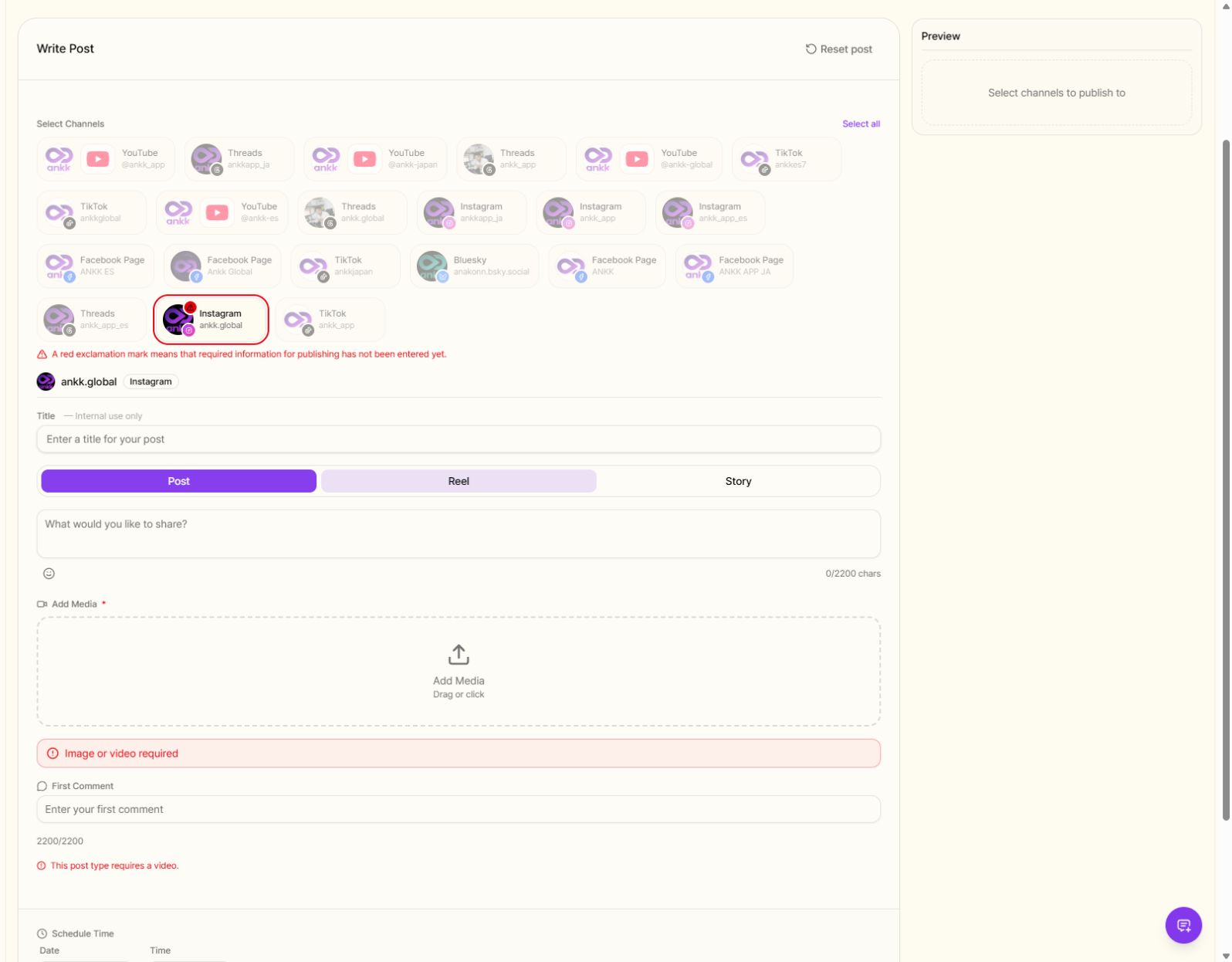
The current Ankk compose screen in English. It shows the selected public Instagram account, the Post/Reel/Story controls, and the media step before anything is submitted.
Ankk is not an AI Reel generator. It is a social media management product for planning, scheduling, and publishing prepared content across multiple networks without registering it separately on every channel, then checking the result.
The current Ankk Instagram support page, last verified on August 14, 2026, describes scheduling for feed posts, Reels, and Stories; carousels with 2–10 media items; and the final Instagram processing result as published or failed. A professional Instagram business or creator account and publicly accessible media are required. Recheck the page before a live publishing run because supported formats can change.
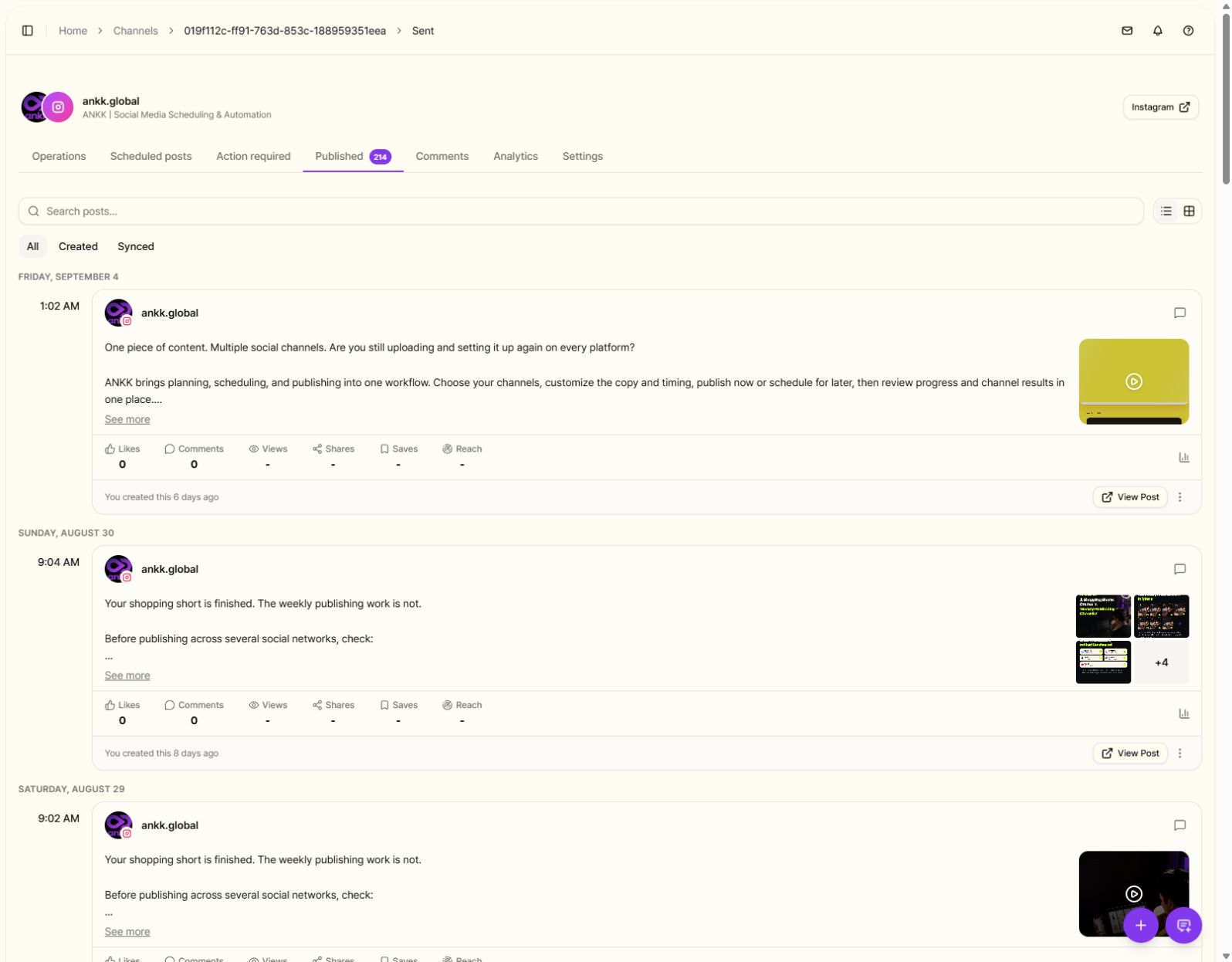
The current Ankk Published view for @ankk.global. The final state and View Post link help separate an accepted request from a verified public result.
Save this final checklist
Video file
- 9:16 vertical, with 1080×1920 px as the working size
- At least 720 px and 30 fps
- Important text and products stay clear of interface overlays
- Length matches both the message and discovery goal
- Music rights fit the account and commercial purpose
Instagram settings
- Correct account and Reel format
- Cover checked in the Reel view and profile grid
- Caption, mentions, hashtags, and visibility reviewed
- Scheduled date, time, and timezone confirmed
After publishing
- The Reel plays from the public profile
- Cover, captions, and post text render correctly
- The final state is published
- The original Instagram URL is recorded
Frequently asked questions
Is 1080×1920 px the only Instagram Reel size?
No. Instagram currently accepts aspect ratios from 1.91:1 to 9:16 and requires at least 720 px and 30 fps. A 1080×1920 px, 9:16 master is simply a practical standard for full-screen vertical quality and reuse.
How long can an Instagram Reel be?
Instagram's current Help Center describes recording and editing Reels up to 20 minutes. It also says Reels longer than 3 minutes may not be recommended to new audiences. Check the current upload screen because account and app availability can differ.
Why is my 1080×1920 Reel still blurry?
Resolution is only one factor. Source quality, repeated compression, frame-rate conversion, export settings, highest-quality upload settings, network conditions, and Instagram processing can all affect the result.
Can I upload the same video to TikTok and YouTube Shorts?
You can reuse the 9:16 master. Recheck each channel's length limits, music rights, title or caption, interface overlays, and visibility. Use the original export rather than a downloaded copy with another platform's watermark.
Sources and verification scope
This guide was localized from the Korean source article and checked against Instagram's official Reel size and recording help, Meta's music guidance, the current public @ankk.global profile and Reel, and Ankk's current Instagram support page. Interface labels and supported formats can change, so use the current upload screen as the final authority before publishing.
Next step
Prepare one Instagram Reel for your other social channels
If you register the same Reel separately on several networks, connect your channels in Ankk and test one publishing workflow through the final channel status and original public URL.