To start a TikTok LIVE, open the app and follow Add post (+) → LIVE → set up your broadcast → Go LIVE. Being able to upload regular videos does not automatically mean you can start a livestream. Check your account's LIVE eligibility first.
This guide is for creators preparing their first broadcast. It separates access requirements, the steps to start, and troubleshooting when LIVE is missing. The official guidance was checked on September 10, 2026. Requirements and menus can vary by region and app version.
1. TikTok LIVE requirements: check age and followers first
At the time of checking, TikTok's English Help Center listed these requirements:
| Item | Official guidance | What to remember |
|---|---|---|
| Age to go LIVE | At least 18 | Broadcasting and Gifts have separate requirements. |
| Followers | 1,000, with regional differences noted | Do not assume the same threshold applies to every account everywhere. |
| Sending or receiving LIVE Gifts | At least 18; 19 in South Korea | Access to LIVE does not automatically mean access to Gifts. |
| Availability | LIVE and Gifts are not available everywhere | Check the current notices shown for your account. |
“Reach 1,000 followers and LIVE is guaranteed” is not an accurate rule. Check age and regional requirements too, and follow the current eligibility information in your app. TikTok's official LIVE guide
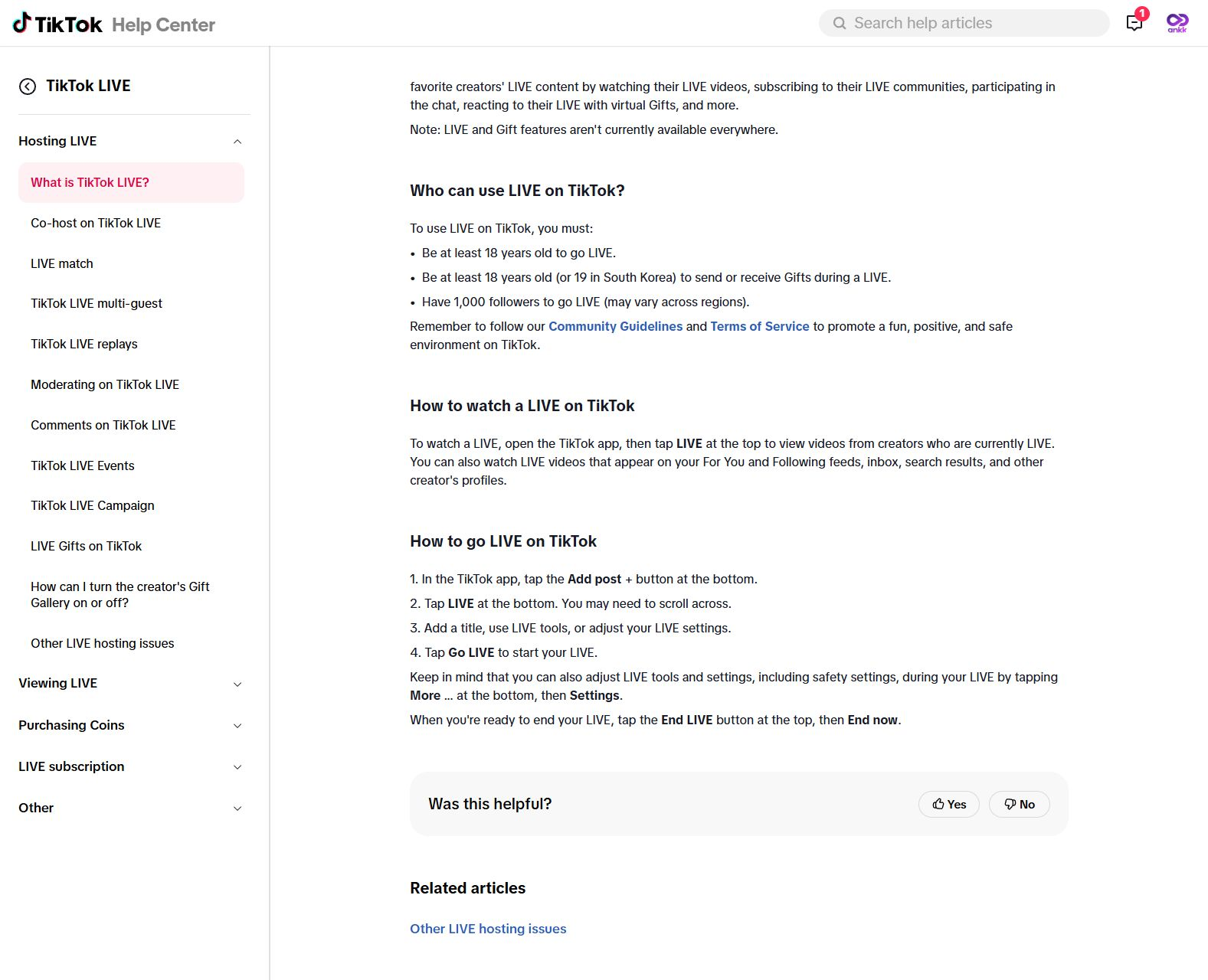
Captured directly from TikTok's English Help Center on September 10, 2026. This is a real support-page screenshot, not the mobile broadcasting screen.
2. How to start a TikTok LIVE on your phone
Once you have checked eligibility, use the TikTok app:
- Tap Add post (+). First confirm that you are signed in to the account you want to broadcast from.
- Select LIVE at the bottom. You may need to scroll across the available options. If LIVE is missing, use the checks below.
- Prepare your title and settings. Review the available LIVE tools and any effects or settings you want to use. Follow the layout in your version of the app.
- Tap Go LIVE only when you are ready. This starts the broadcast. Check what the camera can see and what the microphone can hear beforehand.
To finish, select End LIVE → End now. These instructions are based on TikTok's official documentation. We did not start a broadcast to create this guide.
3. Five things to prepare before going LIVE
The following are practical preparation suggestions, not TikTok eligibility requirements. Start with your phone and existing equipment before buying anything new.
Choose one question to answer
Instead of asking, “What should I talk about?”, decide what the viewer should learn.
For a product demonstration, you could focus on “How do I clean this?” rather than covering design, use, and maintenance all at once. Explain facts you can verify. Do not promise untested benefits or results.
Make the topic clear in the title
These are writing examples, not promises of reach or viewers:
- Product demonstration: Cleaning a travel mug: lid, seal, and all
- Behind the scenes: Let's check my short-video filming setup
- Q&A: Phone filming questions? Let's work through them
A specific subject and activity give viewers more context than a broad title such as “Let's chat.”
Check audio and framing with your regular camera
Record a short clip with your phone's camera app instead of going LIVE as a test. This checks your filming environment, not LIVE access or connection quality.
Play it back. Is your voice clear? Are your hands blocking the product? Is the subject too dark? Remove visible shipping labels, addresses, and personal contact details. Check notification previews and nearby conversations too.
Check connection, power, and permissions
- Check the internet connection where you plan to broadcast.
- Check battery level and how you will keep the phone powered.
- Confirm TikTok can access the camera and microphone in your phone settings.
- Place the items you need within reach.
Camera and microphone permissions can help explain recording problems. Granting them does not make an ineligible account eligible for LIVE.
Keep a three-part outline nearby
For a first broadcast, try a short “introduction → demonstration or answers → recap” outline instead of a long script.
| Part | What to note | Product-demo example |
|---|---|---|
| Opening | One sentence about what you will show | Today I'll show how to remove and wash the mug lid and seal. |
| Main section | The sequence and likely questions | Remove → clean → dry; explain anything that needs care. |
| Closing | The main takeaway and what comes next | Recap drying the seal before putting it back. |
Decide on your first action so you can begin even if viewers do not arrive immediately.
4. What to check if the LIVE button is missing
A missing button is not automatically an app bug. Separate eligibility issues from app or recording problems.
| Situation | Check first | Next step |
|---|---|---|
| No LIVE option on the + screen | Account, age, regional follower requirement | Compare your account's notices with the official requirements. |
| An age-check or restriction notice appears | The exact message and affected feature | Follow the official verification or appeal process shown. Do not use false information to bypass it. |
| LIVE appears, but camera or sound fails | Camera and microphone permissions, device state | Check the recording environment and save any error details. |
| You meet the requirements but still cannot go LIVE | Error message and when it occurs | Report the issue to TikTok. |
Checking for app updates and restarting the app or device are general troubleshooting steps. They do not change eligibility or guarantee a fix. Avoid unofficial apps or offers to unlock LIVE by buying followers.
TikTok says eligible creators who still have trouble can report the problem. TikTok LIVE troubleshooting
What to include in a support request
The documented route is Profile → Menu (☰) → Settings and privacy → Report a problem → choose a topic. If you cannot find a relevant topic, consult the help page for chat support or the online reporting form. TikTok's reporting instructions
Prepare these details, without sharing passwords or verification codes:
- Symptom: Is LIVE missing, or does an error appear when you try to start?
- Timing: When did you first notice it, and does it still happen?
- Device: Phone model, operating system, and TikTok app version.
- Checks completed: Requirements, updates, permissions, and other steps tried.
- Screenshot: The error with personal information and unrelated notifications hidden.
5. Frequently asked questions
Do you need 1,000 followers to go LIVE on TikTok?
The English Help Center listed 1,000 followers when checked, with an explicit note that requirements may vary by region. Do not judge access by a single number. Check age and your account's current notices too.
Why can I watch LIVE but not start one?
Watching and hosting are different activities. Seeing LIVE content does not confirm that your account meets the requirements to broadcast.
Can I receive Gifts as soon as I go LIVE?
LIVE and Gifts have separate requirements. The guidance checked lists a minimum age of 18 for sending or receiving Gifts, or 19 in South Korea. Regional availability and your account's current notices also matter.
Does ANKK start my TikTok LIVE?
No. The broadcast described here starts inside TikTok. This guide does not present ANKK as a livestreaming tool.
Plan your promotional videos separately
If you create short videos to announce the broadcast across several social channels, separate those publishing dates from the livestream itself. For example, introduce one question you will answer, then prepare each channel's caption and posting time.
ANKK helps you plan, schedule, and publish prepared content across multiple social networks from one place, instead of registering each post separately on every channel. If publishing your finished promotional videos across channels is becoming repetitive, explore ANKK's planning, scheduling, and publishing workflow.
This is an independent guide by ANKK. If TikTok's documentation or the notices in your account change, check that current guidance before proceeding.