To create Instagram Highlights, open your profile → start a new Highlight → select Stories → choose a cover and name → finish. You need Stories you have already shared. The labels and order differ slightly between mobile and desktop.
If you run a small shop or create content on your own, decide what visitors should find as well as which buttons to press. Separate product details, how-to guides, and ordering information so each collection answers a clear question.
This guide is based on Instagram’s official Help Center and the desktop interface of ANKK’s Korean Instagram account, checked on September 9, 2026. Mobile instructions come from the official Android guidance, not a hands-on mobile test. Menus and availability can vary by device, app version, and account.
1. Stories, the archive, and Highlights are different
| Feature | Purpose | What to check |
|---|---|---|
| Stories | Content normally visible for 24 hours after sharing | What is timely and who can view it |
| Stories archive | A place to find past Stories | Whether archiving was enabled and the Story is there |
| Highlights | Collections of selected Stories on your profile | What should remain available and whether it is current |
A Highlight can remain after the original Story’s display period ends. It does not automatically make the Story public to everyone: people allowed to see your Stories can also see your Highlights. Instagram’s Highlights guidance
Saving to the archive and displaying content on your profile are separate actions. Instagram also notes that archiving and Highlights may not be available for every account. A missing button alone does not prove that your account is broken. Instagram’s archive guidance
2. Create a Highlight on your phone
- Open your profile and check that you are using the intended account.
- Look for New or the option to create a Highlight. If it is missing, check the Story Highlights menu.
- Select the Stories to include and continue to the next step.
- Use Edit cover to choose a cover, then enter a name.
- Review your choices and tap Done.
You can also add a currently visible Story: open it, tap Highlight, and choose the collection. These steps summarize Instagram’s Android Help Center instructions; follow the options shown on your device. Official device-specific instructions
You do not need to fill several collections immediately. Start with one question you often receive and prepare Stories that answer it.
3. Where to start on desktop
The desktop website also has a Highlights area on the profile. The screenshot below shows the actual @ankk_app account, with Instagram displayed in Korean. A New button appeared below the profile editing and archive controls.
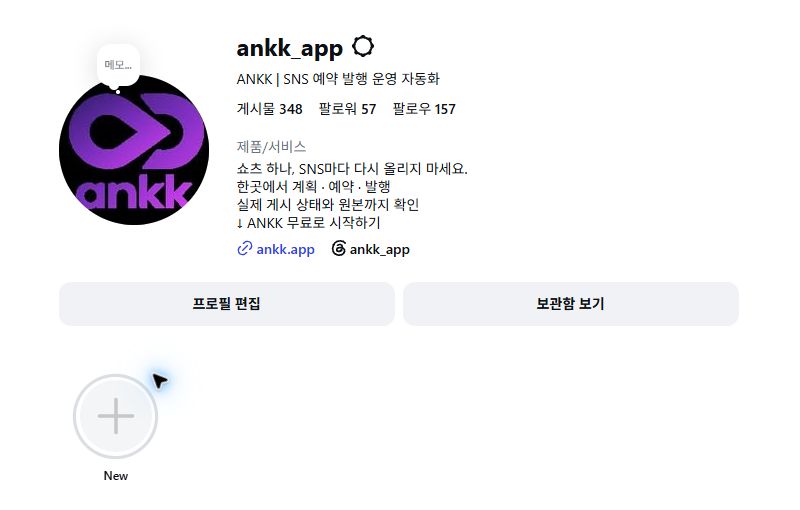
Desktop capture from September 9, 2026. This is the starting screen before creating a Highlight, not an example of a completed collection.
In this interface, clicking New opened the name field first. Entering “상품 소개” (“Products”) enabled the next-step button.
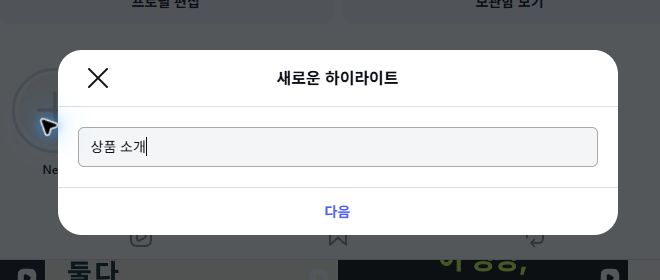
Only an example name was entered. We did not continue to the next step or publish a new Highlight. The screenshot remains in its original Korean interface; it has not been translated or reconstructed.
Instagram’s computer guidance describes entering a name, selecting Stories, choosing a cover, and finishing. If your interface says “Next” where the help page says “Create,” check what the current step asks you to select. Instagram’s computer instructions
4. Add Stories, rename a Highlight, or change its cover
On mobile, press and hold an existing Highlight, or open it and look for More → Edit Highlight. On desktop, open the Highlight and look for More → Edit. Review its Stories, name, and cover in the editing screen. Official editing guidance
The following are design suggestions, not mandatory Instagram image specifications:
- Use a recognizable image or simple icon instead of a dense block of small text.
- Keep the important product or symbol near the center and inspect the actual cover crop.
- Give the name meaning, such as “How to use” or “Ordering,” rather than relying on color alone.
- Keep the style consistent without making every category look identical.
A particular pixel size does not guarantee identical display everywhere. Finish the cover task by checking whether it is readable on the actual profile.
5. Organize products, reviews, and ordering information
A profile organized only by date can make a question such as “Where do I order?” harder to answer. For a shop or brand, try organizing Highlights around visitors’ questions.
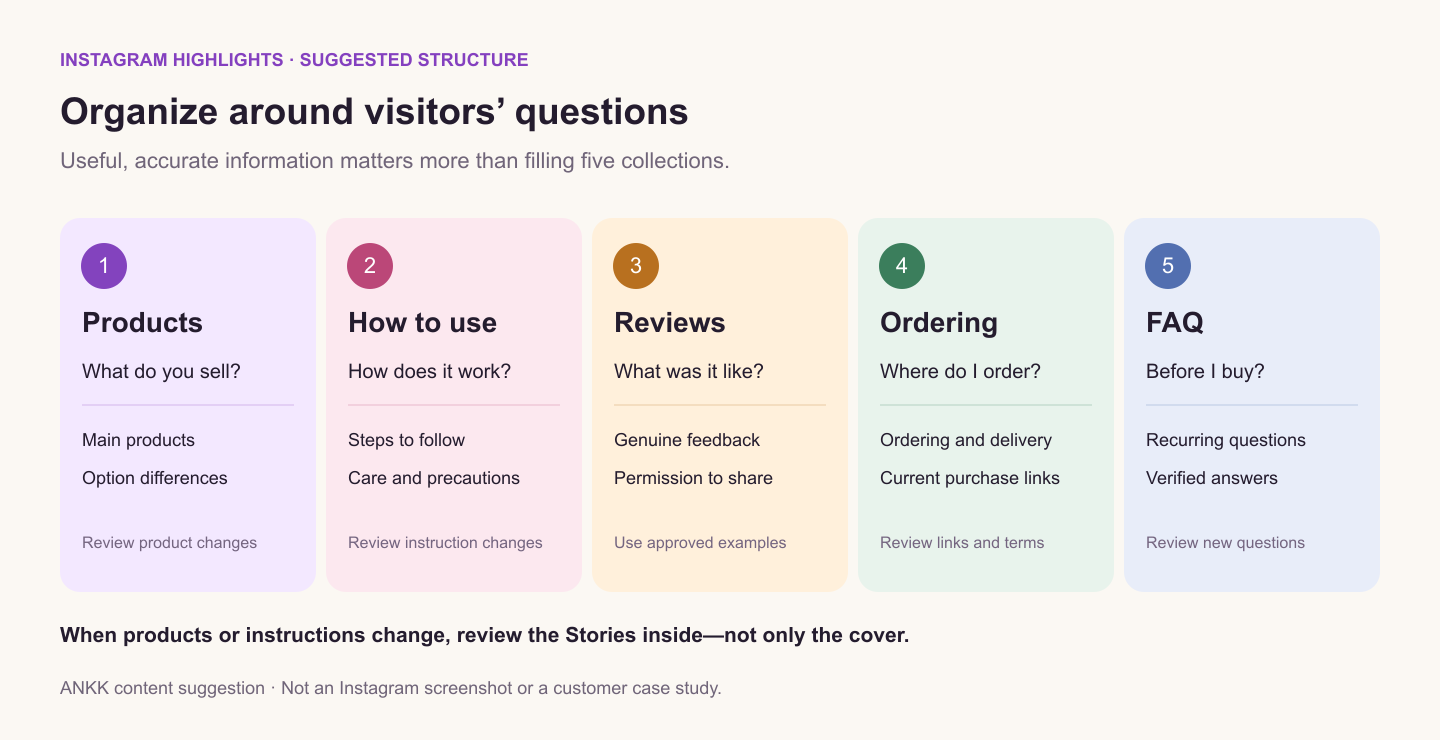
A suggested content structure, not an Instagram screenshot or a customer case study. Five categories are not a requirement.
| Highlight | Question to answer | Content to include | When to review it |
|---|---|---|---|
| Products | What do you sell? | Main products, option differences, important limitations | Products or options change |
| How to use | How does it work? | Preparation, use, and care | Instructions change |
| Reviews | How have customers used it? | Genuine reviews and examples with permission to share | New examples become available |
| Ordering | Where and how can I order? | Ordering route, shipping information, contact method | Links or terms change |
| FAQ | What should I know before buying? | Recurring questions and verified answers | Questions change |
For a hypothetical tumbler shop, “Products” might explain capacity and options, “How to use” could cover cleaning and care, and “Ordering” could show where to buy. This is an illustrative example. Include performance figures and cleaning methods only when verified for the actual product.
If you have no reviews, you do not need a Reviews collection. Do not present your own description as a customer testimonial or share private-message screenshots without permission. Start with product information and instructions you can publish responsibly.
A simple sequence within one Highlight
For a how-to collection, try what you will learn → steps to follow → precautions → where to find details. When covering several products, name the product in each Story so instructions do not become mixed up.
Open the collection from beginning to end. Look for repeated scenes, missing steps, and guidance that is no longer valid—not just an attractive cover.
6. Common problems before and after setup
I cannot find an old Story in the archive
Check the account and the setting to save Stories to the archive. Instagram describes automatic archiving after 24 hours, with an option to turn it off. Enabling the setting now is not evidence that older Stories were recovered: find the actual item in your archive. Archive settings
If the content is missing, consider preparing a new Story from source files you still have. Recheck the information and intended audience before sharing it.
The music or motion changed in an archived Story
Instagram notes that archiving can change some Stories, including muted music or frozen video or GIF content. Do not make a product explanation depend entirely on sound or movement. Play the selected Story and inspect it, and keep your original photos and videos separately. Changes to archived Stories
Can other people see it properly?
Creating a Highlight does not remove a private account’s restrictions or a Story’s audience limits. Check with an intended viewer instead of relying only on your own screen. For account types and public information, see our Instagram professional account guide.
Does a new name or cover finish the update?
No. A new cover can still lead to an expired promotion or an old price. Review the Stories inside separately from the name and cover.
7. Five checks after organizing your Highlights
- Information: Are prices, options, shipping details, and promotion dates current?
- Links: Do ordering links and the profile link point to the right page?
- Readability: Is any text too small, a product cropped, or an explanation unclear without sound?
- Audience: Can the intended viewers see it, and is private information protected?
- Consistency: Do different Stories give conflicting answers or include outdated guidance?
Record the review date in your internal work sheet. Revisit the relevant Highlight when products or ordering terms change. Accurate information matters more than filling a fixed number of collections or changing covers frequently.
8. Separate profile organization from publishing across social networks
Highlights organize information that should remain available to Instagram visitors. Regularly publishing a product’s Reels or posts on other social networks is a separate workflow.
ANKK lets you plan, schedule, and publish prepared content across social networks in one place, with channels, copy, and timing in one workflow. After requesting publication, you can check channel statuses and open the original social posts. Getting started with ANKK
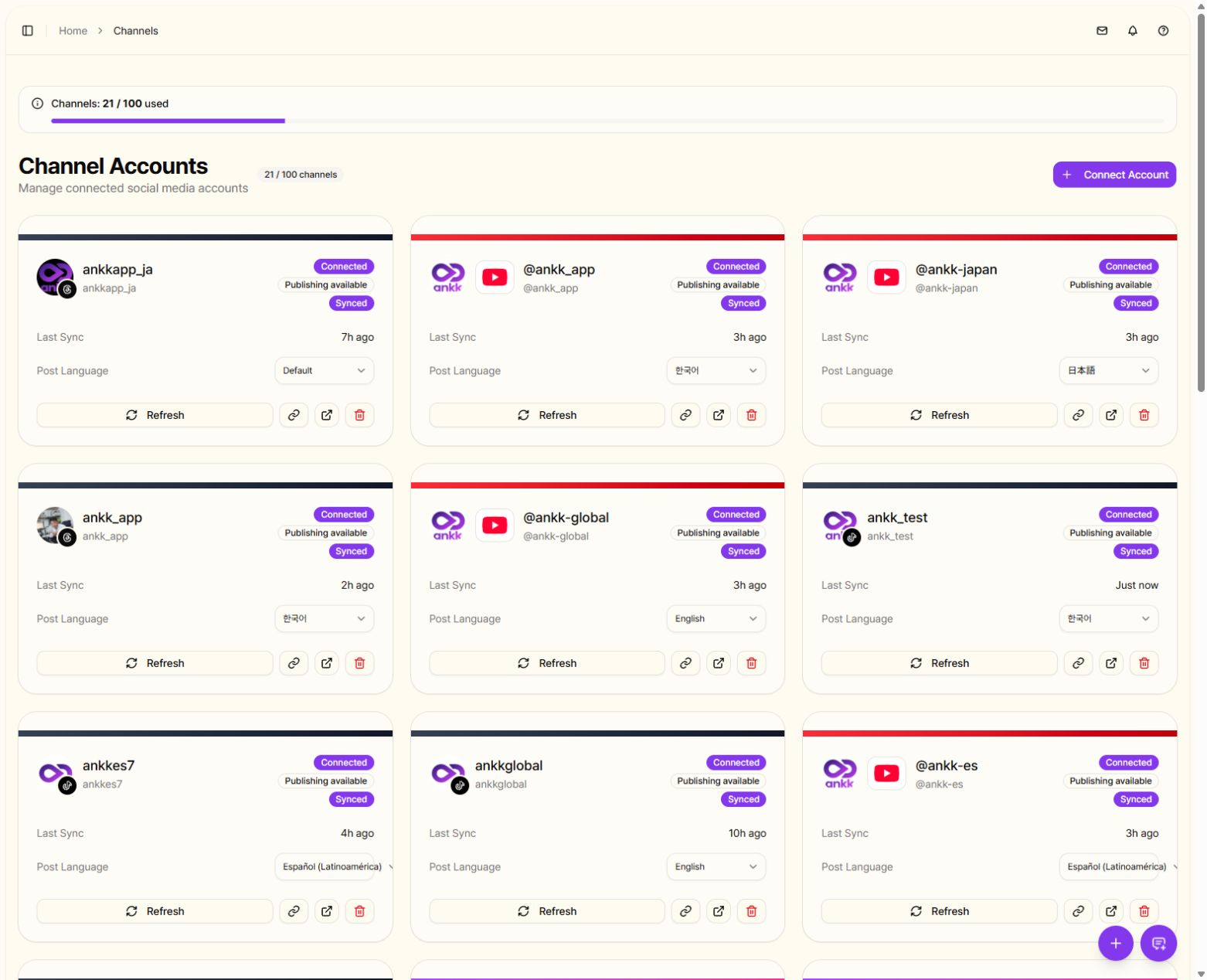
An actual account-management view in the ANKK brand workspace. This is not a Highlights editor or the publication result of this article. Channel usage shown belongs to this workspace and does not represent every plan’s limit.
Creating Highlights and editing their covers are Instagram tasks. This guide does not mean that ANKK edits Highlights for you or automatically keeps them up to date.
Once your profile information is organized, choose one piece of content and the social networks where you want to publish it.
Connect your channels and prepare your next post with ANKK →
Related: How to post on Instagram: multiple photos, sizes, and desktop uploads · Instagram Reels size and length checklist