Threads has a built-in scheduler. For one account and a few original posts, try the native option first. If you manage several accounts or social networks, an external tool can help you keep the schedule and publishing results together. The important distinction is where you created the schedule: a Threads draft, a scheduled Threads post and an ANKK scheduled item are different things.
Checked November 11, 2026. We inspected threads.com and Threads 455.0.0.55.72 on a Galaxy S10 5G running Android 12. The app screenshots use @ankk.global with the interface in English. Separately, on the Korean account @ankk_app, we scheduled a test on the PC for November 18 at 15:00 Korea time, changed it to 15:30, and immediately deleted it. After a reload, its scheduled/drafts list was empty. We did not publish a public post.
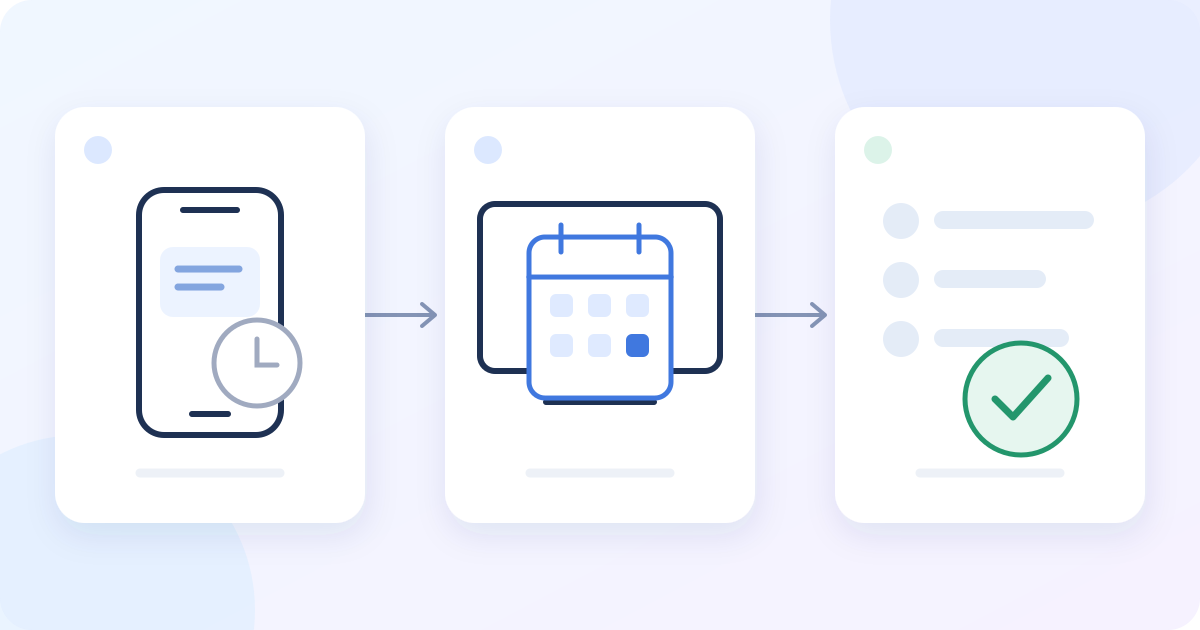
An explanatory diagram of phone and PC scheduling and the final-result check.
1. Choose where you will schedule and check the result
| Your situation | Start here | Check after scheduling |
|---|---|---|
| One Threads account and a small number of original posts | Threads' native scheduler, where available | That account's native scheduling/drafts area |
| Several accounts or several social networks | Your chosen tool's supported scheduling workflow | The same tool's scheduled list and final result |
| An idea without a confirmed publishing time | A draft | A draft is not evidence of a confirmed schedule |
You do not need a paid tool just to prepare a few Threads posts. Meta announced native scheduling, and Mosseri confirmed its rollout. Availability and menu placement still need checking on the account and device you use.
2. Schedule a Threads post on a PC
- Open threads.com and confirm the account shown in the composer.
- Open New thread and prepare the text and supported attachments.
- Open More at the top right of the web composer, then choose Schedule….
- Select the date and time, then choose Done. Check the displayed time again, especially if you work across time zones.
- Review the final scheduling action in the composer. Selecting a date alone does not prove that the post has been scheduled. After confirming, reopen the native list and check the account, content and publishing time.
On November 11, the inspected PC calendar allowed dates through January 25, 2027: 75 days ahead; January 26 was disabled. This is an observation of that account's current date picker, not a promise that every future account or content type will use the same limit. Use the selectable dates in your own composer. Do not copy Instagram's separate scheduling limits onto Threads.
3. Schedule a Threads post in the app
- Open your profile and check the account. Confirm the same handle in the new-post composer. Prepare the text and supported attachments.
- Open the top-right More menu and choose Schedule…. This is separate from the attachment tools beside photos/GIFs and from Post options.
- Choose the date and time in Schedule post. The completion button finishes the time selection; it is a separate step from confirming the schedule.
- Back in the composer, review the account, text, attachments and publishing time before the final scheduling confirmation. Then open the list and check that the schedule was saved.
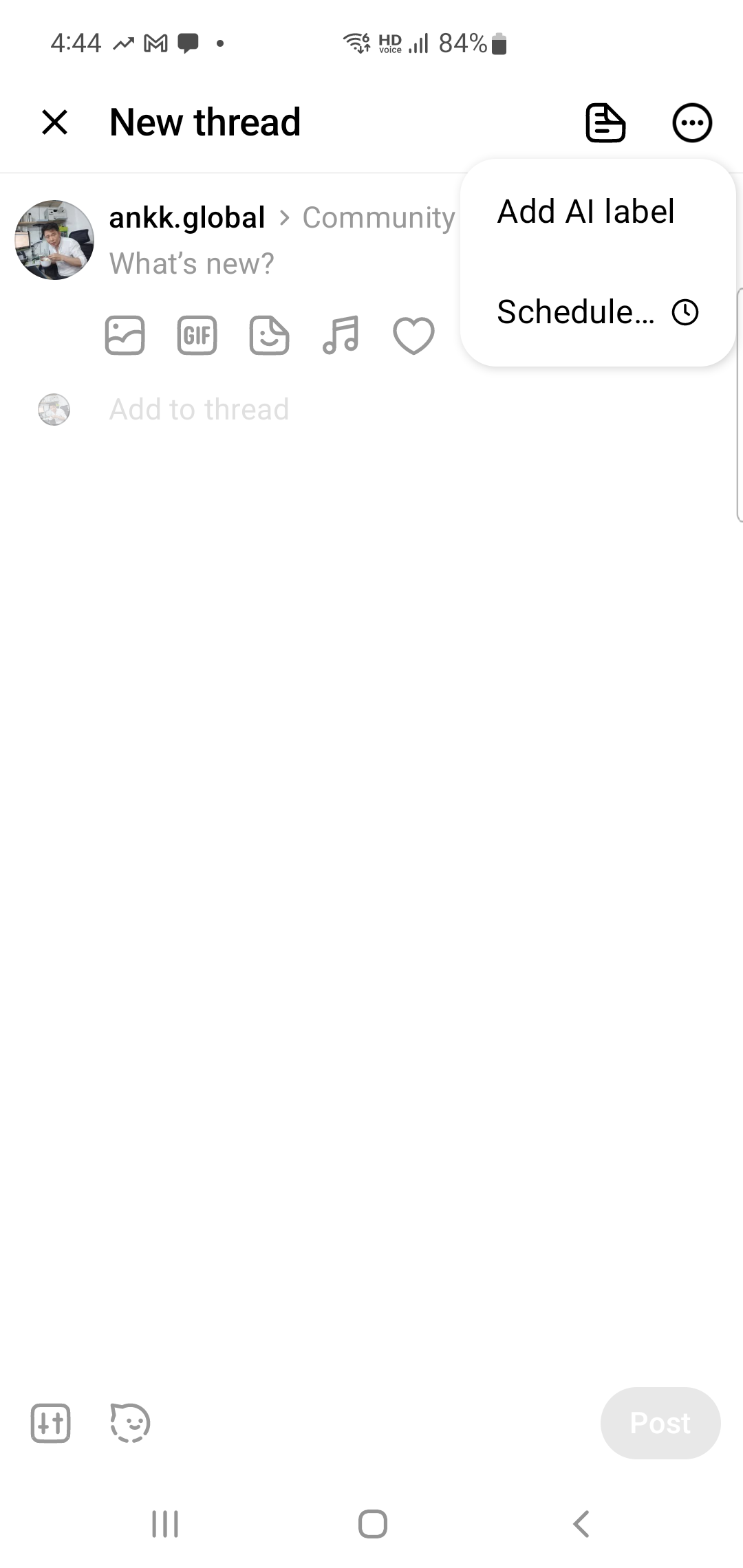
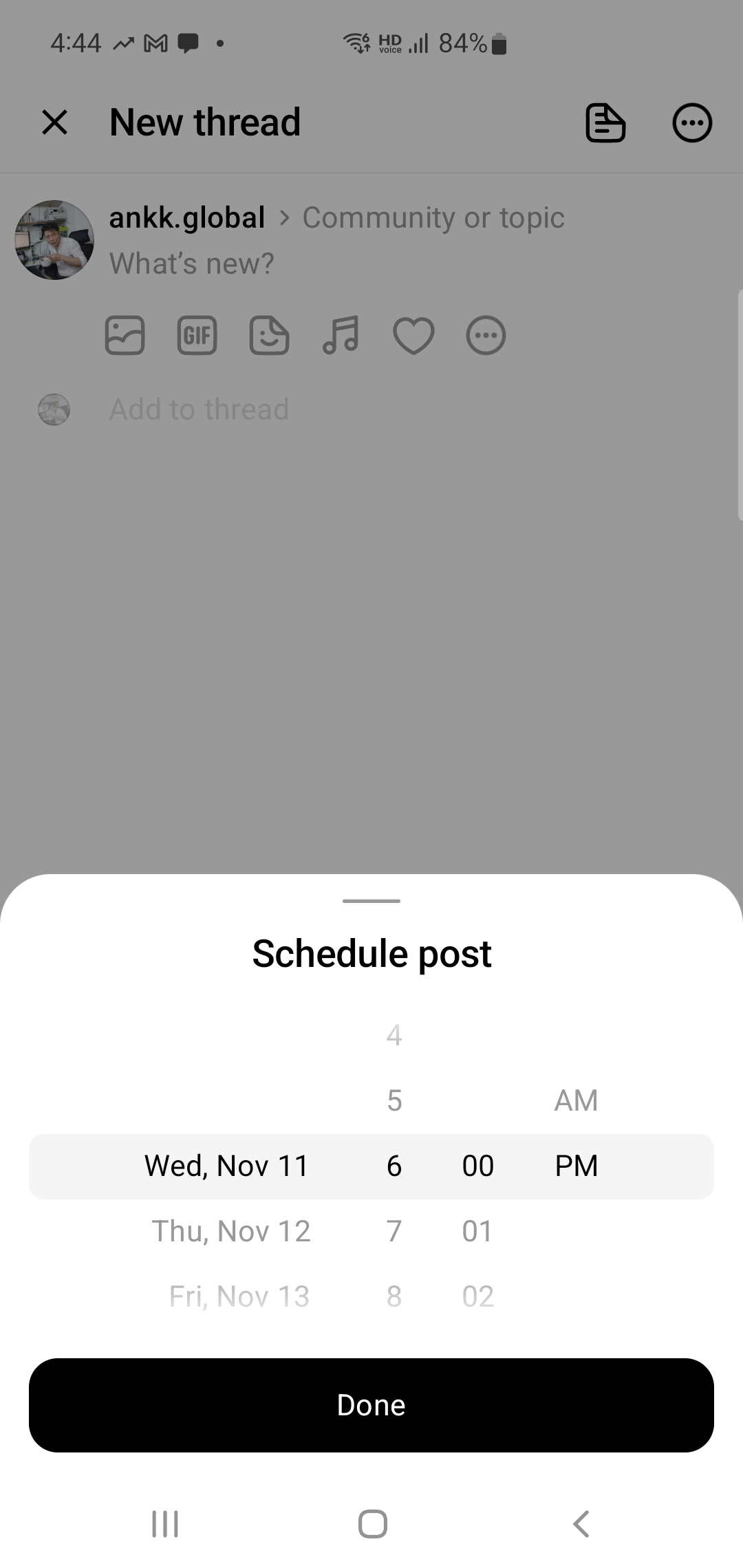
For these localized captures, we used an empty composer and opened the menu and date picker without submitting new schedules on the pictured accounts. The separate Korean-account PC test covered creation, a time change and cancellation.
The scheduling menu was initially missing in our app check. After reopening the app and checking the current account, we could find it. If it is missing for you, check the version and account, and try the PC route. We did not test the iPhone app. A reply to someone else and a new original post are different workflows; do not assume identical scheduling options.
4. Find your scheduled posts and drafts
On the inspected PC interface, open New thread → Drafts, using the document icon in the composer header. The app also has a drafts icon in its composer. Check the correct profile before deciding that something is missing.
An empty list is useful evidence only for that account and surface. Meta's draft guidance says ordinary drafts are accessed where they were saved: web drafts on the web, app drafts in the app. Do not treat an ordinary draft as a confirmed schedule, or assume the mobile and PC draft lists are interchangeable.
If you scheduled in ANKK, open ANKK's scheduled list first. The native Threads list is not a complete list of external-tool jobs. Before recreating anything, check the original tool, the account and the final publishing outcome.
5. Change a scheduled time or cancel a post
Manage a schedule in the service that created it. We tested creation, a time change and deletion using native Threads on a PC.
- Open Drafts from the new-post composer and select the scheduled item.
- To change the time, open its date/time banner or the schedule-edit option in the item's three-dot menu. Choose the new time, then save with the composer's update action. Completing the date picker alone does not establish that the change was saved.
- To cancel and remove the scheduled item, use the delete-draft action in the list item's three-dot menu. Reopen the list and confirm its removal. This removes a future scheduled item, which differs from deleting a public post.
Our test changed November 18, 15:00 → 15:30 (GMT+9) in the list. After deletion and a reload, the list was empty. This verified a schedule change and cancellation, not editing or deleting a public post.
Manage future ANKK schedules from ANKK's scheduled list. If processing has started, check the original and final outcome first. A local cancellation is not proof that an already accepted provider operation stopped.
After publication, Threads' official editing guidance currently allows text edits within 15 minutes. Attachments cannot be added or removed through that edit. These native rules do not promise that ANKK can edit or delete a published post.
6. If the scheduled time passes, establish what happened
| What you see | What it establishes | What to do next |
|---|---|---|
| A future scheduled item | A publication is planned | Check the target account, date and time zone |
| Accepted, queued or processing | Work has been received or is in progress | Follow the result before submitting it again |
| Published with an original-post link | A post has been created | Open the Threads original and check the text and media |
| Error or action required | Something needs attention | Read the reason; resolve access, media or permission issues in the original tool |
Do not schedule a duplicate merely because a native list is empty. Check the profile's published posts, the original scheduling service and any error first. For the distinction between a planned time and a public post, see scheduled is not published.
7. When ANKK is useful—and what to check first
The native scheduler is a reasonable starting point for one account. ANKK is relevant when you want to plan supported Threads posts alongside other accounts and networks, and check each publishing result in the same workflow. See ANKK's Threads channel details and scheduling workflow before choosing a tool.
The current ANKK channel description supports text, images, video and supported carousels. Our connected-account check on November 11 reported general Threads publishing as available, while chained multi-post publishing was still marked “coming soon.” Do not plan a campaign around an unverified chain, first comment, scheduled reply, poll, or published-post edit/delete capability. Check the live capability and permission status for the specific connection.
Preparing a schedule, accepting a request and making the post public are separate steps. Check the final outcome and original-post link for each destination; a successful submission is not the end of the workflow.
8. Common questions
Can I schedule Threads posts for free?
Native scheduling does not require buying ANKK. Start with the available Threads composer. Compare external tools only when account switching, multiple networks or result tracking creates enough work to justify them.
Why can I see scheduling on a PC but not in the app?
The menu was missing during our initial check. After reopening the app and checking the current account, we could find it. Check your version and account, and use the PC route if it is available. A missing menu is not a reason to duplicate an external schedule.
Does cancelling a schedule delete an already published post?
These are different actions. A future schedule belongs to the tool that created it; a published post exists on Threads. Check whether publication has started and inspect the original before deciding what action is still possible.
Sources and scope of this check
- Meta's official introduction to Threads scheduling and drafts
- Mosseri's native scheduling announcement
- Save and reopen a Threads draft
- Edit a published Threads post
We compared primary sources with the actual web/app screens on November 11, 2026, and tested schedule creation, a time change and immediate cancellation. We did not test public publication. If you are still organizing your profiles, read the Threads account preparation guide.