An Instagram caption is the text you publish with a photo or Reel. It can explain the scene, add instructions, or ask your readers a question. It is different from subtitles that display speech or sound inside a video.
Not sure how to start? Try what the post is about → details the image cannot show → one next step. An everyday photo may need just one line. A product post may need dimensions, options, or instructions.
This guide covers where captions go, how to add and edit them, line breaks, and 20 original examples. These are writing suggestions, not a formula for more likes, views, or sales.
Where is an Instagram caption?
The caption is the descriptive text shown with the account name on a post. Its position and how you expand it can differ between the mobile feed, Reels, and desktop post view. A caption is not the same as a comment.
| Text type | What it does | Example |
|---|---|---|
| Post caption | Adds context to a photo or video | Product details, a filming story, instructions |
| Video subtitles | Represent speech or sound within a video | Dialogue displayed as the video plays |
| Profile bio | Introduces the account | What you post about |
| Comment | Starts or continues a conversation on a post | A question and the creator’s reply |
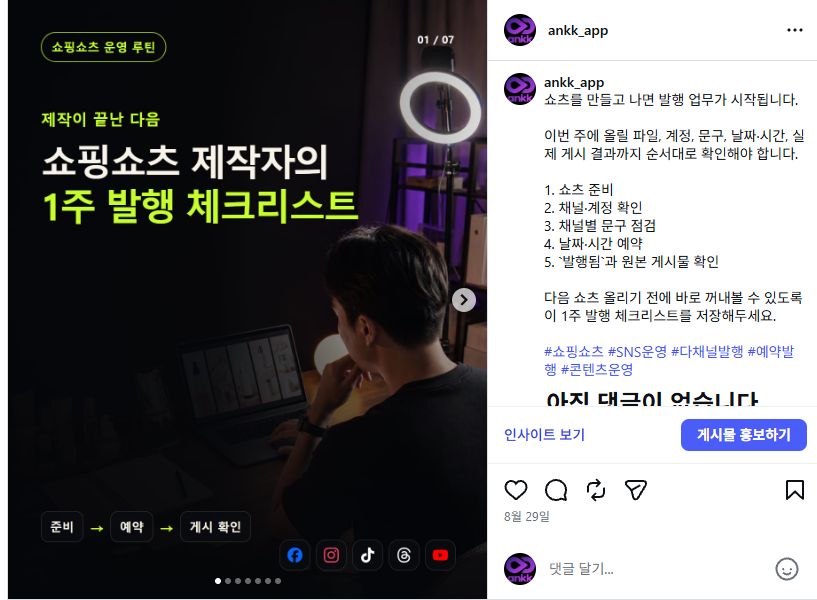
Original Korean desktop screenshot of an ANKK public post, checked September 9, 2026. The text on the right is the caption. This illustrates its location, not a caption with proven performance. The screenshot has not been translated or recreated.
How to add a caption on mobile and desktop
In the mobile app
- Start creating a post and choose your photo or video.
- Continue to the next screen and finish any edits.
- Enter your text in the caption field before sharing.
- Check the account, media, and text, then share the post.
This follows Instagram’s official Android instructions. Button labels and placement may vary by operating system, app version, language, and post type. Instagram: adding a caption
On desktop
The general path is Create → Post → select files from your computer → Next → edit → Next → caption field → Share. The labels here describe the steps; check the wording in your own interface. For photo selection and sizing, see our Instagram upload guide. Instagram: sharing a photo
How to write the first line
Ask yourself: “What should someone looking at this photo know?” Start with the subject, situation, or key information, rather than a string of adjectives.
| Purpose | Vague opening | More specific opening |
|---|---|---|
| Everyday moment | Another lovely day. | After the rain, I paused on the path I walk every day. |
| Product introduction | Our new arrival is here! | An inside clip keeps your keys easy to find in your bag. |
| Tutorial | Here’s a useful tip. | Getting hand shadows in your shot? Start with the light position. |
| Business hours | Important announcement. | This Saturday, we open at 2 p.m. |
These are fictional before-and-after examples. Use them only if they match your photo, product features, or actual business hours.
Put the point first, but do not force every opening into a fixed character count. How much text is visible depends on the screen and layout. If you open with a question, answer it in the post. If you promise three points, deliver three.
A simple three-part caption structure
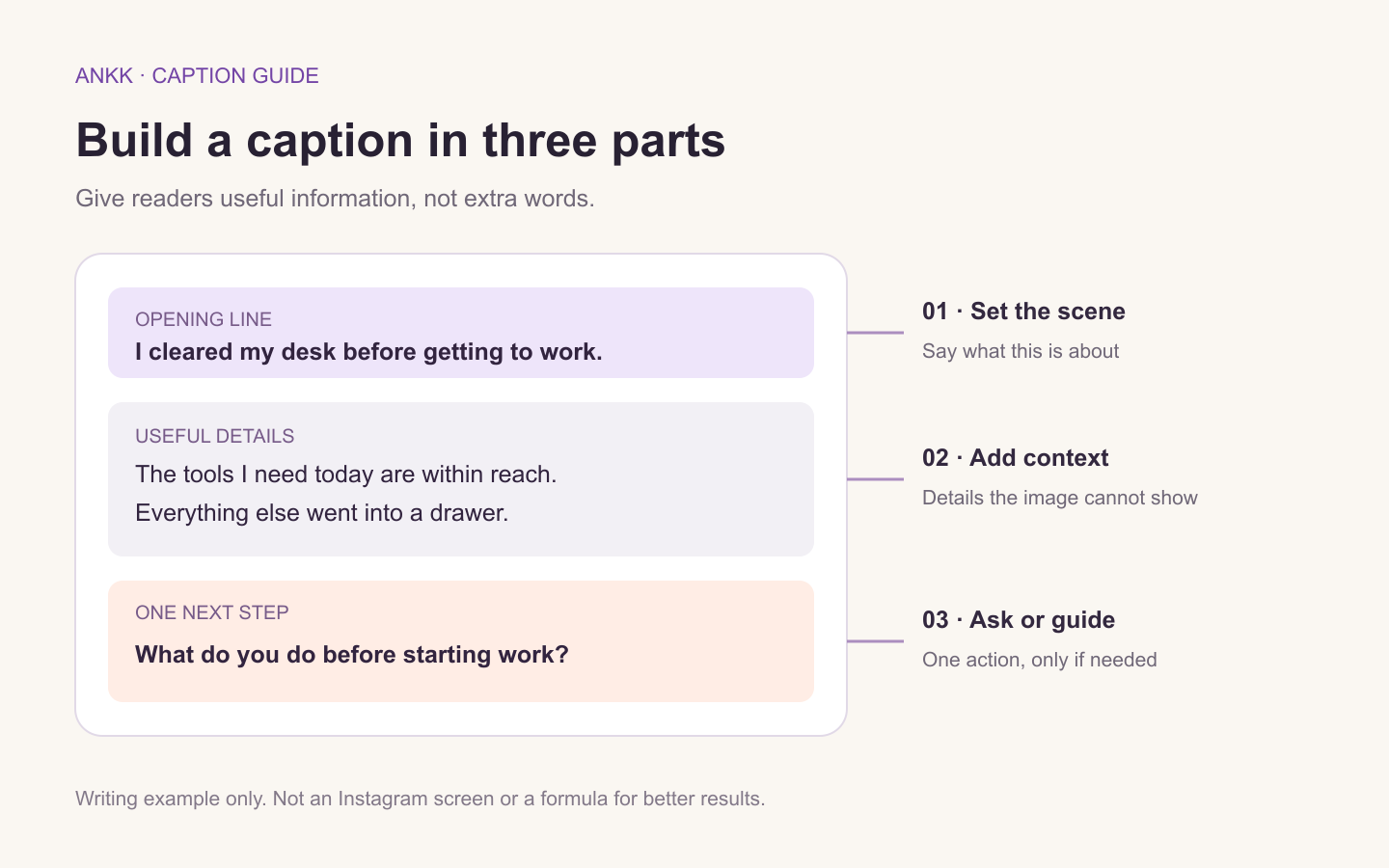
An editorial writing example, not an Instagram interface or an algorithm formula.
1. Opening: say what the post is about.
“Wondering how big [product] is? Start with these measurements.” gets straight to the subject. If the photo already explains enough, one line that adds atmosphere can work too.
2. Body: add information the image cannot show.
Include materials, dimensions, conditions of use, a process you tried, or details someone needs before visiting. Give readers a basis for deciding. Do not add unverified effects, figures, or customer testimonials.
3. Ending: suggest one next step, if needed.
A tutorial can end with a reminder to save it. A discussion post can ask a specific question. A product post can point to real product information. You do not need to ask for saves, comments, shares, and follows at once. A personal memory may need no request at all.
The Shopify caption guide, in Korean, also discusses openings, purpose, and information readers need. The examples below were written specifically for this ANKK guide.
20 Instagram caption examples
Choose a starting point that fits your post. Replace every [bracketed field] with verified information. Even the examples without brackets must match your own photo and experience. Mention a launch, restock, reply, or link only when it is genuinely ready.
Everyday moments and short captions
01. A photo from a walk
Same path. A different light today.
02. A café break
Before the coffee gets cold, a little time to do nothing.
03. A weekend memory
An afternoon with no plans. Still one worth keeping.
04. Work in progress
Not the finished piece—just where I got to today. A little further along.
Product introductions and comparisons
05. A new product
Meet [product], made for [use case].
Swipe to the second photo for a closer look at [feature]. Full dimensions are in the [product information link name] link in our bio.
06. Showing the size
Hard to judge the size from a photo? Here’s a side-by-side comparison.
We placed [product] next to [reference object]. It measures [width × depth × height, with units]. Check those measurements against the space where you plan to use it.
07. Comparing colors
[Color A] and [color B], photographed side by side under the same light.
Colors can look different depending on the lighting and your screen settings. Which would go better with the items you already use?
08. A restock
[Product and option] is back in stock.
This restock includes [options]. You can order through [actual ordering channel]. Please check current availability and dispatch information before ordering.
Tutorials and useful information
09. Step-by-step instructions
Using [product] for the first time? Start here.
① [Preparation] → ② [Use] → ③ [Finish]
Check [precaution] before you begin. Save this for the next time you need it.
10. Behind the camera
We photographed the same item using [setting A] and [setting B].
In this shoot, we noticed [observed difference]. Our setup was [lighting, distance, and other conditions]. Results may differ in another setting.
11. A checklist
Before you start [task], check these three points.
① [First item] ② [Second item] ③ [Third item]
Save this so you can find it when you need it.
12. Helping someone choose
Deciding between [A] and [B]? Start with [comparison criterion].
For [situation 1], consider [choice and reason]. For [situation 2], consider [choice and reason]. Compare them with how you plan to use the item.
Dates, schedules, and updates
13. A change in opening hours
On [day and date], our opening hours will be [updated hours].
Please check before visiting, as these differ from our usual hours. Regular hours resume on [date].
14. Order dispatch dates
Here is our dispatch schedule for orders placed during [period].
Orders paid by [cutoff] are scheduled to leave us on [dispatch date]. This is not the delivery date. For orders placed after the cutoff, check [information channel].
15. A preview of the next post
Next up: [topic].
We’re putting together [details to cover], along with the process behind them. What would you most like to know about this topic?
16. A correction
A correction to [item] in this post.
We have changed [previous information] to [correct information]. We’re sorry for the confusion. Please refer to the updated details before making plans.
Questions that start a conversation
17. Choosing between two versions
The same scene, two different approaches. Which do you prefer: the first or the second?
18. Asking about the work itself
Which part of [task] takes you the longest: preparation, creating, or finishing up? Pick one.
19. Asking where people use something
Where do you use [product category] most: at home, at work, or on the go?
20. Questions after a tutorial
Today we covered the basics of [topic]. Is there a step you’d like explained in more detail? Leave a question below. We’ll answer based on what we can verify.
How to organize line breaks in Instagram captions
Use paragraph breaks to separate the opening, details, and final prompt. Break where the meaning changes, rather than after every word or with long runs of empty lines.
Here is a spaced-out example you can draft in a notes app and paste into the caption field:
I cleared my desk before getting to work.

The tools I need today are within reach.
Everything else went into a drawer.

What do you always do before you start working?
If the spacing does not appear as intended:
- Keep a separate copy of your draft in a notes app.
- Remove unwanted trailing spaces or special characters introduced when copying.
- Add the paragraph breaks again in the caption field.
- Open the published post and check the result.
This is a troubleshooting checklist, not a guaranteed fix. Paragraphs were visible in the desktop post used for this guide; identical behavior was not tested across all mobile environments. Do not give an outside service your Instagram password just to add line breaks.
Can you edit a caption after posting?
Yes. Instagram documents how to add, edit, or delete the caption on an existing photo or video post. Changing the caption is different from deleting the post. Instagram: editing captions
On desktop, open the post’s options, choose the edit action, change the caption, and confirm. On mobile, the general flow is also post options → edit → save. Check the labels in your interface and reopen the original post afterward to confirm the change.
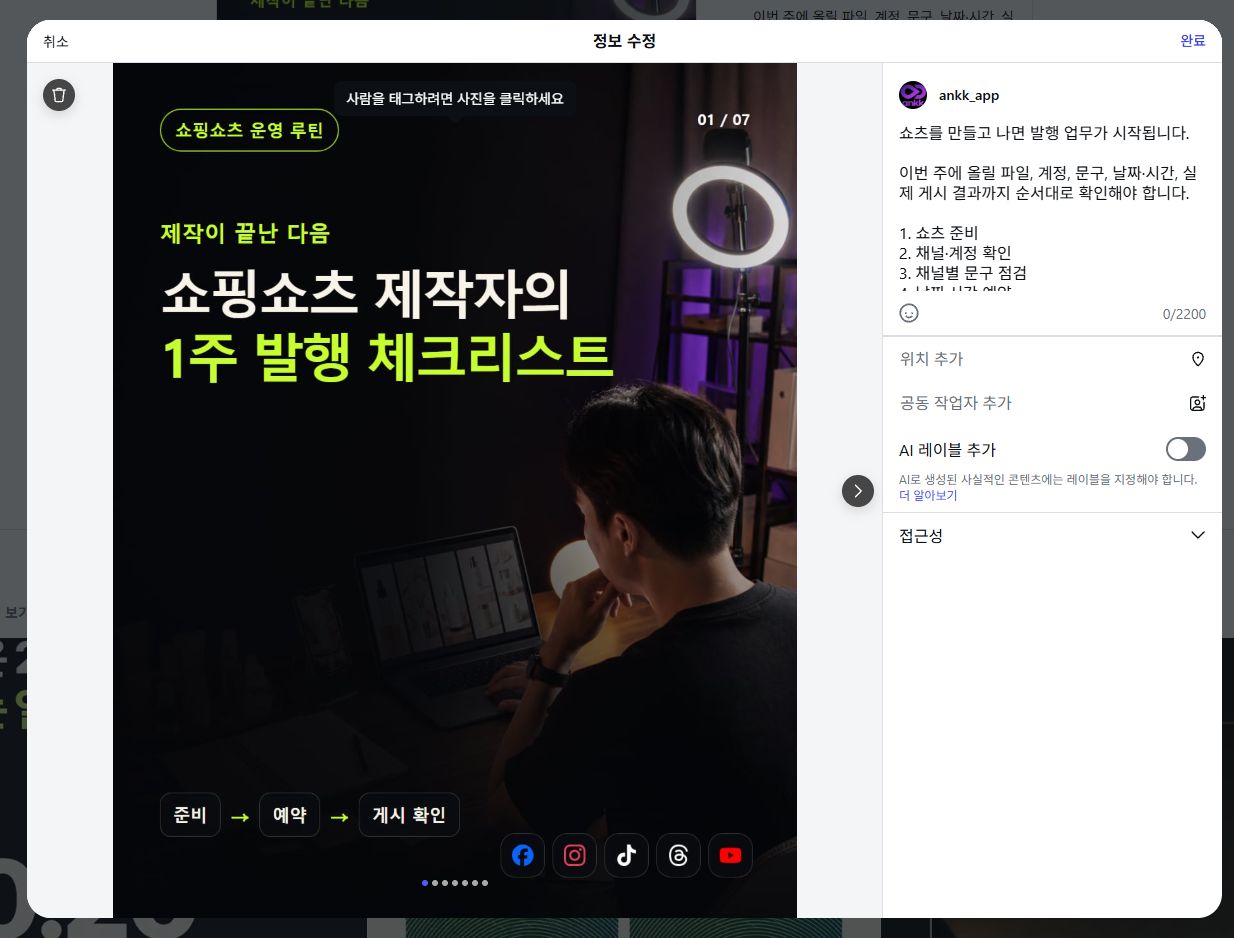
Original Korean desktop edit window for an ANKK public post. It was opened to inspect the caption field and then canceled without changing text or settings. This is an existing-post editor, not a new-post screen. The screenshot has not been translated or recreated.
If the character counter shows zero despite text being present—as it did in this capture—do not use that number alone to judge whether your text was saved. If an edit does not appear, keep a copy of the text and check the app’s state, updates, or temporary errors. Do not rush to delete and repost before investigating.
Frequently asked questions
Should an Instagram caption be long or short?
One line may be enough for an everyday photo. Instructions or schedule changes need enough detail to be useful. Judge by what readers need to know, not length alone. Also check the limit and character count shown in your writing interface.
Can I use only hashtags?
If there is something to explain, do not rely on hashtags to do it. Describe the subject and key details first, then add relevant hashtags. This guide does not promise that a particular number or combination will increase reach.
Can I use an AI-written caption as it is?
Use it as a draft, then verify product features, prices, dates, and personal experiences. Do not say you tried something you have not tried, or offer a benefit you do not provide. Edit it into your account’s usual voice and remove anything unrelated to the post.
Does editing a caption change text inside the image?
No. This guide concerns the post’s accompanying text, not lettering embedded in a photo or video.
Final checks before posting
- Does the opening match the photo or video?
- Are the product details, dates, numbers, and experiences verified?
- Have you replaced every [bracketed field]?
- Are the linked information, ordering channel, and promised replies genuinely ready?
- Are the paragraphs readable, with no repeated requests for action?
- Is this the right account, and can you check the original post after publishing?
Once the caption is ready, publishing the same content across several social networks can still mean entering text and schedules separately. ANKK is a social media management tool for planning, scheduling, and publishing prepared content in one place. It is not a built-in caption generator; its role here is organizing channel-specific copy and the publishing workflow.
Explore the multichannel publishing workflow
Source checks: September 9, 2026. Localized September 10, 2026. Mobile steps follow Instagram’s official Android help; screenshots are original Korean desktop captures. Interface labels are explanatory translations, not screenshots of an English interface. Instagram’s interface and availability may change. This independent ANKK guide is not official Meta or Instagram documentation.