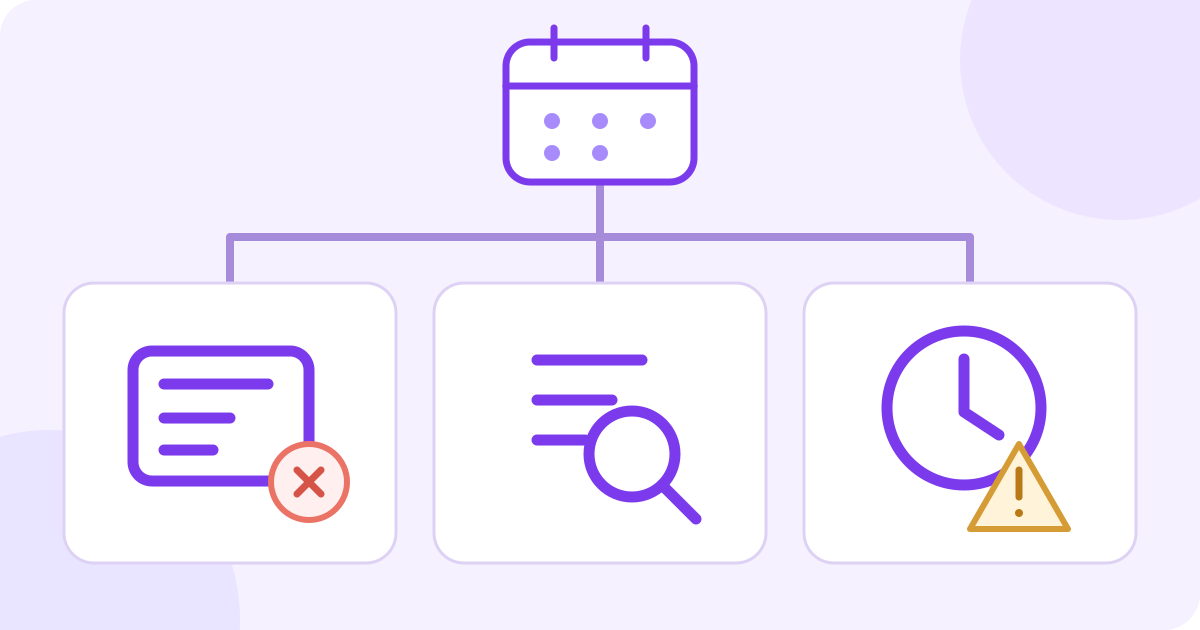
When an Instagram scheduled post is not working, first identify a missing scheduling option, a missing scheduled post, or a post that has not appeared after its scheduled time. Then check where you scheduled it: the Instagram app, Meta Business Suite, or an external tool. An empty list is not a reason to send the same post again.
Checked November 11, 2026. The real screenshot shows @ankk.global with the Instagram interface in English, on a Galaxy S10 5G running Android 12 and Instagram 454.0.0.54.77. We checked the scheduling menus without creating, scheduling, publishing, or deleting a post. Menu locations can differ on iPhone, other app versions, and other accounts.
An explanatory diagram of three symptoms. The screenshot below shows the real app.
1. Match the symptom to the place you scheduled
| Symptom | Check first | Next step |
|---|---|---|
| The scheduling button or menu is missing | Public-account status, content type, options, and the actual menu path | Follow the missing-menu checks below |
| A scheduled post is not in the list | Scheduling account and tool, date range, filters, and draft versus scheduled status | Open the tool that created the schedule |
| The scheduled time has passed, but there is no post | Time zone, last status or error, and the Instagram original | Establish the existing job's outcome before retrying |
The place to look depends on how you scheduled.
| Scheduling route | Where to check | Common mix-up |
|---|---|---|
| Instagram app | Scheduled content for that account | Assuming it lists every schedule from other accounts or tools |
| Meta Business Suite | The correct asset's Content → Scheduled, or Planner | Forgetting the Instagram/Facebook and date filters |
| ANKK or another external tool | That tool's queue, schedule, and final publishing result | Treating an empty Instagram-app list as proof the external schedule failed |
2. When the scheduling option is missing
Instagram's current app guidance requires a public account and allows up to 25 scheduled posts a day, up to 30 days ahead. Do not apply older “professional accounts only” or “75 days ahead” guidance to every current app account. If you need to stay private, decide your audience requirements before making an account public just for scheduling. External API tools have separate conditions, explained below. Instagram's official scheduling guide
- Check the username at the top of your profile. A second brand account may have different options.
- On the final sharing screen for a post or Reel, look for More options and the scheduling setting. Do not assume the app's post/Reel instructions also apply to Stories.
- Check that the date is within the app's scheduling window. If you already schedule many posts, check the daily limit too.
- Review options that cannot be combined with scheduled content, such as product tags, collaborative posts, sponsored posts, and fundraisers. Decide which features you need before removing work from your post.
- If the list is missing from the main menu, also check Profile → Menu → Settings and activity → Account type and tools → Scheduled content. That is the route we observed on this Android account; it can differ from the help article's menu layout.
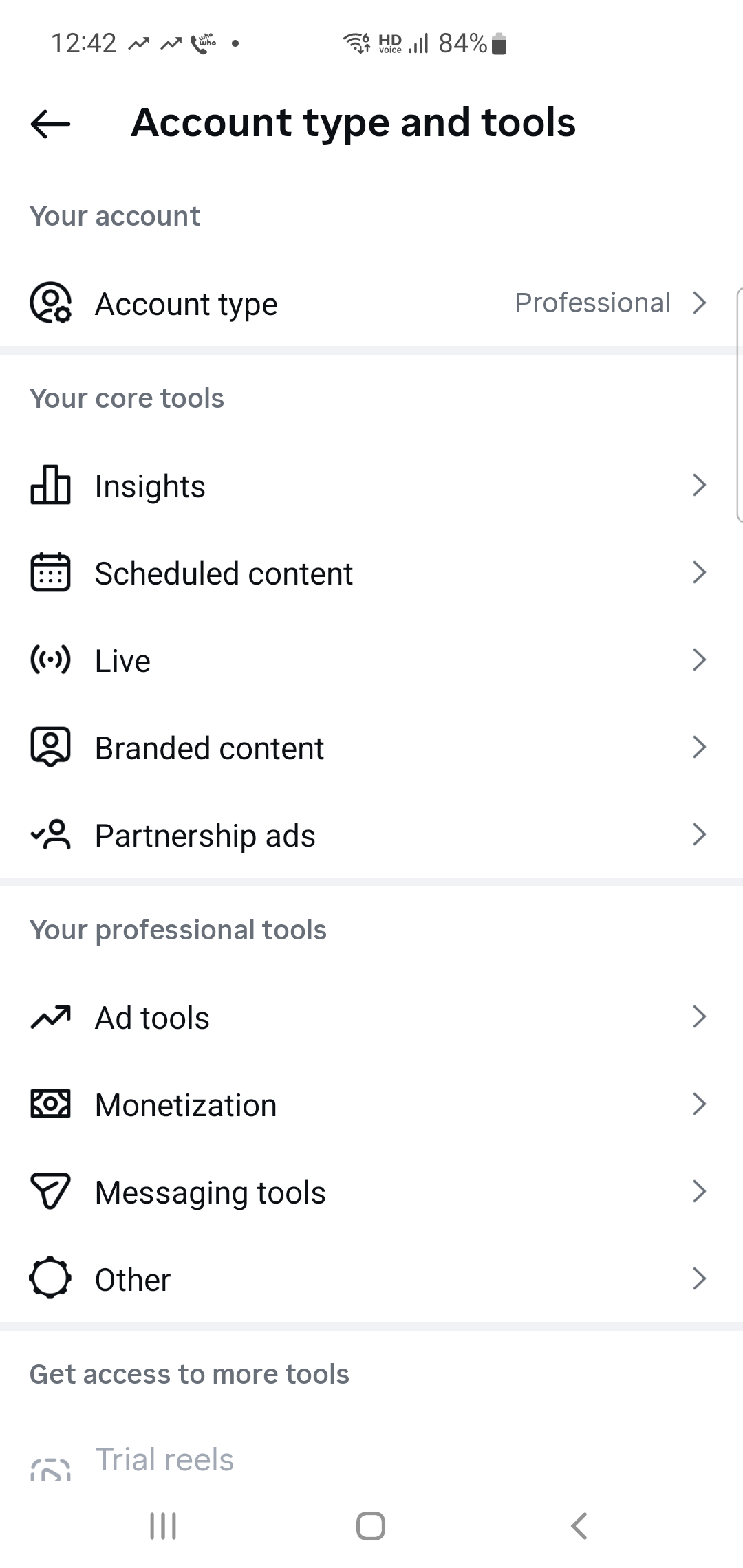
If the option is still absent, note the app version, account privacy, content type, and exact error. A feature appearing on one account does not establish that it appears in the same place on another. Switching account types, deleting the app, or reinstalling should not be the first diagnostic step: preserve existing work and settings.
3. When a scheduled post is missing from the list
Return to the tool where you created the schedule. The Instagram-app list, Business Suite Planner, and an external queue should not be treated as one universal schedule ledger.
- Match the username to the account used when scheduling, including the language-specific account for your brand.
- For a schedule created in Instagram, open Scheduled content. Instagram also documents a Scheduled entry while creating a new post or Reel as another way to manage schedules.
- In Meta Business Suite, choose the correct Page/Instagram asset, then check Content → Posts and reels → Scheduled or Planner. Review date, platform, and content-type filters.
- In an external tool, check whether the content was only saved as a draft or actually scheduled. Compare the scheduled time with any confirmation or existing job identifier you retained.
Open Scheduled content from the screen above to check the list. Even if that next screen is empty, it describes this account's list in the app. It does not prove that ANKK or another tool has no schedules, or that a previous attempt failed. Find the original schedule before creating another copy.
4. When the scheduled time has passed without a post
At this point, focus on the last processing result and the actual Instagram post, rather than the existence of a list entry.
- Check the time: Keep the date and time zone together. For example,
2026-11-12 09:00 KST (UTC+9)is2026-11-12 00:00 UTC. Check whether the device and tool use the same display basis. - Still processing: Follow that tool's status guidance and checking interval instead of creating an overlapping schedule. There is no universal “retry after a fixed number of minutes” rule.
- Failed: Save the error text and observation time. Use the tool's guidance to establish whether the account connection, publishing permission, media format, or media access needs attention.
- Marked published: Open the Instagram original and check the account, caption, and media. If the original cannot be opened, record that verification failed and consider that a post may already exist before sending another request.
If authorization needs renewal, confirm the correct existing account and the required publishing permission. You do not need to start by deleting source files or scheduling records. Read why scheduled and published are different for the broader status workflow.
5. Keep these six details before making changes
- The scheduling tool and Instagram username
- Whether the content is a post, Reel, or Story
- The intended date, time, and time zone
- Last status, exact error, and the time you checked
- Caption, original media, and a way to identify the existing schedule/job
- The Instagram original URL, or the fact that you have not found one
When asking for help, do not send passwords, verification codes, or access tokens. Hide other people's information in screenshots. Only choose a supported retry or reschedule action after establishing that the existing content was not published and that the cause has been addressed.
6. Checking Meta Business Suite on a computer
Choose the correct Facebook Page or Instagram account in the top-left selector, then open Planner or Content. If Planner is missing, review the selected asset and your content permission. Meta's Planner guidance covers content scheduled through Business Suite; do not assume it also contains every future schedule from an external tool. Meta's Planner guide
In the Scheduled tab, review available actions such as rescheduling or moving to drafts in the context of the current status. Share now/Publish is a real publishing action, not a diagnostic button to try while investigating. Managing Business Suite posts
7. If you scheduled through ANKK
Check the connected Instagram channel, scheduled time in the queue, and processing result in ANKK. After publishing, check the original too. ANKK's Instagram connection uses a Business or Creator account with the required publishing permission. This is a separate requirement from the Instagram app's public-account guidance. Meta's API publishing requirements
See ANKK's Instagram support for account conditions and content formats, and scheduled publishing for the workflow. Changing scheduling tools does not resolve every failure. Base the next action on the error you found and the current job's outcome.
8. Frequently asked questions
Does a missing menu on a professional account mean scheduling is unavailable?
That observation alone does not establish it. Check the current public-account guidance, content options, scheduling window, and the Account type and tools path. External connections have separate professional-account and permission requirements.
Does an empty Instagram-app list mean my ANKK schedule failed?
No. For content scheduled in ANKK, start with ANKK's queue and results. Do not treat every scheduling tool's list as the same list.
Should I delete and schedule again as soon as the time passes?
First check the last status and the Instagram original. Sending content that was already published can create a duplicate. Address the cause, then check whether your tool supports retrying or rescheduling the existing job.
For cropping or carousel preparation, continue with the photo upload guide. For account conditions, see the professional account guide.